DST Embroidery File is usually the very first format you hear about when you step into the machine embroidery world, because it’s the most widely used file in the industry. Almost every commercial embroidery machine relies on DST, which is why learning how it’s created and converted properly becomes so important.

In this guide, I’ll show you how professionals create clean, machine-ready DST files that run smoothly on Tajima, Brother, Janome, and other machines.
How to Digitize a Perfect DST Embroidery File for Any Machine?
What Is a DST Embroidery File?
It is basically a set of stitch instructions that tells the machine exactly how to sew a design on fabric. It doesn’t work like a picture or a logo file; instead, it controls needle movement, stitch direction, trims, and jumps.
That’s why a DST stitch file is so important for getting clean, professional embroidery results that actually run well on the machine.
What a DST File Does Not Store?
This part often surprises people. A DST file does not store colors, images, shapes, or visual effects the way embroidery software shows them on screen. The embroidery DST format only focuses on stitches, not appearance.
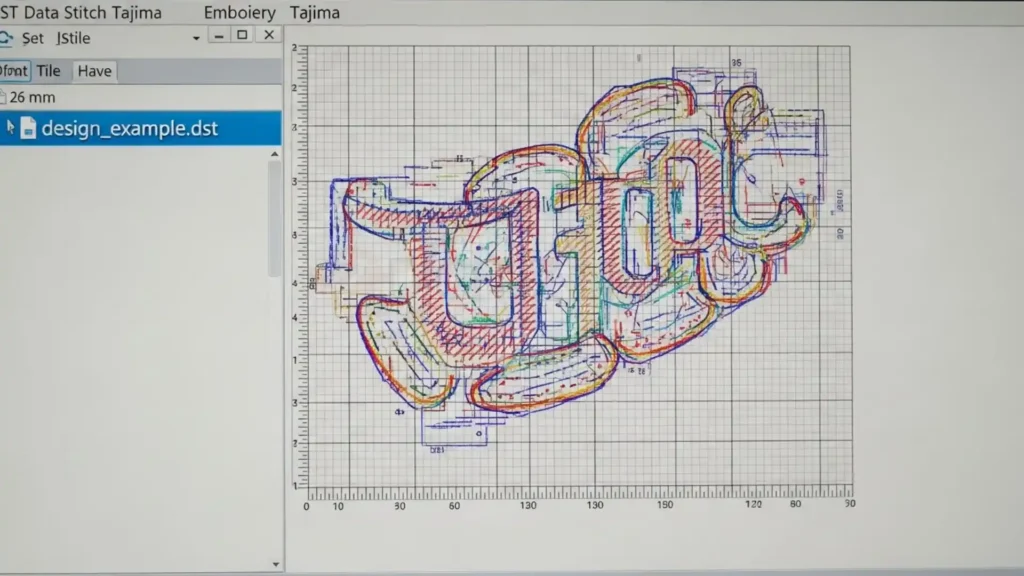
Thread colors are chosen separately on the machine, and effects like gradients or shadows are created through smart stitch planning, not saved in the file itself. This is why proper digitizing matters more than how good the design looks on your computer.
DST vs PES vs JEF vs EXP: When DST Is the Best Choice
You’ll come across other formats like PES and JEF, which are usually linked to specific home or brand-based machines. But when flexibility matters, most professionals rely on the Tajima DST format because it works across many commercial embroidery machines.
If you’re sharing designs, running production jobs, or working with different setups, using a DST file for embroidery is often the safest and most reliable choice.
Best Software for Creating Professional DST Embroidery Files
Choosing the right software directly affects how clean, stable, and machine-friendly your final result will be. Some programs are built for full production control, while others are designed for learning or light work.
Understanding the strengths of each option helps you avoid poor stitching results when working with a DST embroidery file.
Professional Digitizing Software
Professional software is used in embroidery shops where quality, speed, and consistency matter every day. These tools allow full manual control instead of relying on guesswork.

1. Wilcom Embroidery Studio
Wilcom is considered the industry benchmark because it gives complete control over stitch logic, density, underlay, trims, and sequencing.
Wilcom DST digitizing is preferred for logos, small text, and complex designs where accuracy is critical. It’s ideal when you need predictable stitch-outs on commercial machines with minimal revisions.
2. Hatch Embroidery
Hatch is a strong choice for small businesses and advanced users who want professional results with an easier learning curve.
It offers powerful manual tools while guiding users through stitch setup, making it practical for those learning how to make a DST file without sacrificing quality.
3. Tajima DG / ML
Tajima DG is designed around production workflows and commercial embroidery environments. It works especially well for bulk orders and industrial machines, where stability and speed are more important than decorative effects.
Semi-Automatic & Entry-Level Tools
These tools are commonly used by beginners or small shops that don’t require advanced production control but still want usable results.

1. Embird
Embird is flexible and affordable, offering editing and basic digitizing features through add-on modules. It’s helpful for learning stitch structure and handling basic DST conversion, though it may require extra testing and cleanup for professional use.
2. SewArt
SewArt for DST files focuses more on image-based workflows. It’s often used for simple designs and learning purposes, but it relies heavily on automatic settings, which means manual correction is usually needed after PNG to DST or vector to DST processes.
Free vs Paid Software: Quality Trade-Offs
Many beginners start with free DST digitizing tools, which are useful for understanding basic embroidery concepts. However, free tools usually lack precise control over stitch flow, underlay, and trims.
Paid software reduces trial-and-error and fabric waste, especially when designs need to be resized, edited, or professionally finished before you convert to DST for production.
Software Settings That Affect DST Output Quality
No matter which software you use, settings determine the final result. Stitch density, underlay type, stitch direction, pull compensation, and trim control all impact how the design runs on the machine.
Poor settings can cause thread breaks, gaps, or puckering, even if the software is advanced. This is why real embroidery success depends on understanding settings, not just clicking export or relying on automatic embroidery file conversion.
Convert DST Embroidery File | Step-by-Step Process
In real embroidery work, converting a design to DST is a practical workflow, not a shortcut. Professionals don’t rely on one-click tools; they plan stitches, test results, and adjust based on how the machine actually runs.
Below is the real-world embroidery digitizing process used in shops to get clean, reliable results.

Step 1: Start With Embroidery-Ready Artwork
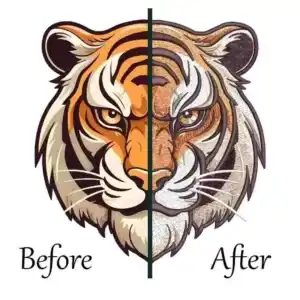
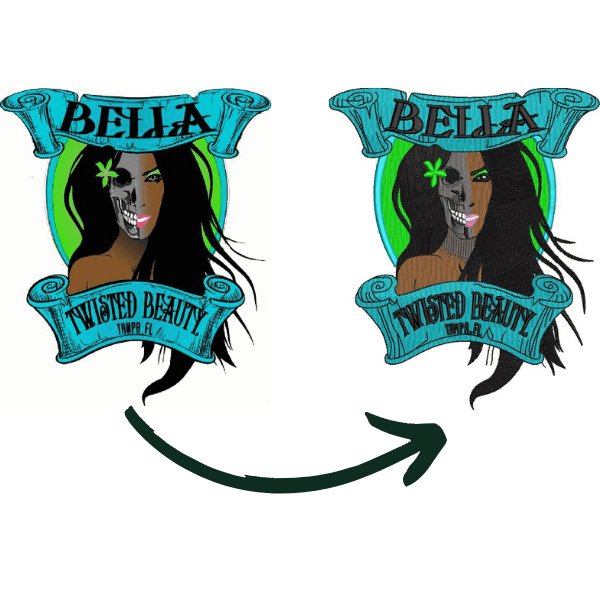
The process begins by reviewing the design for embroidery file digitizing. Fine details, tiny text, and complex gradients are simplified because fabric and thread behave very differently than screens.
Step 2: Digitize the Design With Stitch Logic
This is where digitizing DST files happens properly. Stitch types are assigned, stitch direction is planned, underlay is added, and density is adjusted according to fabric and placement, not automatically guessed by software.
Step 3: Control Stitch Flow, Jumps, and Trims
Before exporting, the design is carefully sequenced. Objects are ordered to reduce unnecessary jumps and trims, which improves machine speed and prevents thread breaks during production.
Step 4: Export and Create the DST File
Once everything is set, the design is exported to create DST embroidery file. At this stage, the software converts all stitch instructions into one of the standard DST file formats that embroidery machines can read.
Step 5: Test Stitch and Final Adjustment
After the embroidery file conversion, a test stitch-out is done on similar fabric. Any issues like gaps, puckering, or tension problems are corrected before final production.
What Stitch Types Are Used in DST Embroidery Files?
When working with a DST file, stitch types are what actually create the design on fabric. Choosing the right stitches and adjusting them correctly through DST file settings makes a big difference in how clean, durable, and professional the final embroidery looks.

- Satin Stitch – Used for borders, lettering, and outlines; gives a smooth, shiny finish and works best for medium-width shapes
- Fill (Tatami) Stitch – Common for larger areas; provides coverage while allowing flexibility to control density and texture
- Running Stitch – Used for fine details, light outlines, and placement lines where minimal stitching is needed
- Zigzag Stitch – Often used in underlay or for securing edges before top stitches are applied
- Underlay Stitch – A foundational stitch placed under top stitches to stabilize fabric and improve stitch quality
- Jump Stitch – Moves the needle between areas without stitching; managed carefully to avoid excess trims
- Trim Command – Cuts the thread between design sections to keep the embroidery clean
- Stop Command – Pauses the machine for thread changes or manual adjustments
These stitch types work together inside a DST file to control how the machine sews, making stitch planning just as important as the design itself.
Machine Compatibility: Making One DST File Run on Any Machine
One of the biggest reasons professionals rely on DST embroidery files is their wide machine compatibility, but that doesn’t mean every machine reads them the same way.
To make one DST file run smoothly across different brands, you need to understand how each machine handles trims, jumps, hoop limits, and design positioning in real production.
DST Files on Tajima Embroidery Machines
Tajima machines are built around DST, which is why this format performs so reliably on them. They read stitch commands, trims, and color stops very accurately, making DST ideal for commercial and high-speed production.
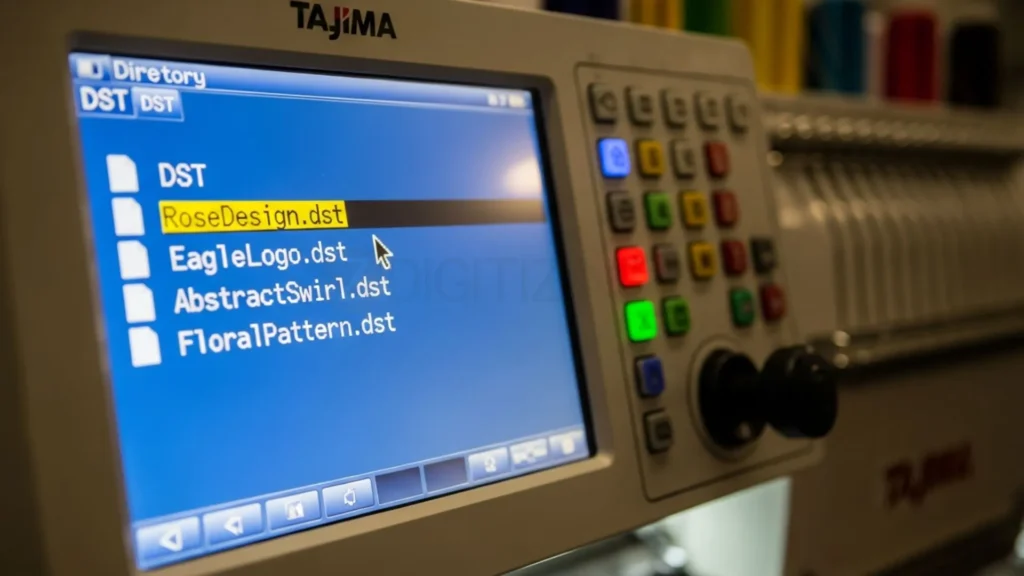
When digitizing for Tajima, clean stitch sequencing and controlled trims are especially important to maintain speed and reduce thread breaks during long runs.
DST Files on Brother & Janome Machines
Many users successfully run DST designs on home and semi-commercial machines, but extra care is needed. A DST file for Brother machine users should be tested carefully because home machines may handle trims and jumps differently than commercial ones.
Similarly, the DST format for Janome works best when designs are properly centered, hoop sizes are respected, and stitch density is adjusted for lighter fabrics commonly used with these machines.
Barudan, Melco, ZSK, Bernina Compatibility Notes
Barudan, Melco, ZSK, and Bernina machines also support DST files, especially in commercial environments. However, differences in machine speed, tension systems, and trim behavior mean a well-digitized file is critical.
Keeping stitch paths clean, minimizing unnecessary jumps, and testing on similar fabric helps ensure the DST file runs consistently across all these machines without surprises.
Stitch Density Control for a Perfect DST Embroidery File
Stitch density is one of those things that doesn’t look like a big deal on screen, but makes a huge difference once the machine starts stitching. If the density is too high, the fabric can pucker, the thread may break, and the design feels stiff.
If it’s too low, the fabric shows through, and the embroidery looks weak or unfinished. This is why stitch density is always carefully planned during professional DST digitizing, not guessed or left on auto settings.

In real embroidery work, density is adjusted based on fabric type, design size, and stitch direction. A logo on a polo shirt needs very different settings than the same design on a cap or hoodie.
Experienced digitizers test, adjust, and fine-tune density so the stitches sit smoothly on the fabric without stress. When density is controlled correctly, the DST file runs cleaner, faster, and produces consistent results across different machines.
Quality Control Checklist for a Perfect DST Embroidery File
- Open the DST file in embroidery software or a file viewer and review the overall stitch layout
- Check stitch order to ensure the design flows smoothly without unnecessary jumps
- Confirm trim commands are placed correctly to avoid loose threads or excessive cutting
- Inspect small text, borders, and fine details for gaps or overly tight stitches
- Verify that the final design size, orientation, and center point match the hoop placement
- Review stitch density to make sure the embroidery will not be too stiff or too light
- Run a test stitch on similar fabric to check for puckering, distortion, or thread breaks
- Feel the stitched design to confirm it has a balanced, professional finish
- Check thread colors, needle size, tension, and backing before full production
- Approve the file only after it stitches cleanly and runs smoothly on the machine

When to Use a Professional Digitizing Service for DST Files?
There comes a point in embroidery work where doing everything yourself actually starts costing more time, money, and fabric. You should consider using a professional digitizing service when your design is complex, has small text, fine details, or needs to run smoothly on different machines.
It’s also the right choice when you have urgent orders, production deadlines, or when your in-house software or auto-digitizing tools are not giving clean stitch results.
If your DST embroidery files are causing thread breaks, puckering, poor outlines, or repeated machine stops, that’s a clear sign the digitizing needs expert attention. Professional digitizers understand stitch logic, density control, underlay, trims, and machine behavior, things that make a real difference once the needle starts running.
This is where ZDigitizing comes in. We have been providing professional embroidery digitizing services since 2002, and DST files are something we’ve been working with from the very beginning.
Our experienced digitizers know exactly how DST files behave on different machines, which is why our files are created with proper stitch flow, clean trims, and smooth machine performance.
We deliver guaranteed quality with 24/7 support, so you never have to wait or worry, especially when you’re dealing with urgent orders. If you need changes or revisions, we handle them quickly so your production doesn’t stop. Our goal is simple: deliver machine-ready DST files that stitch right the first time.
To make it easy for you to test our quality, we’re offering a special deal for new customers.
ORDER NOW & Get 50% off on your first digitizing order and experience quality and 24/7 support.