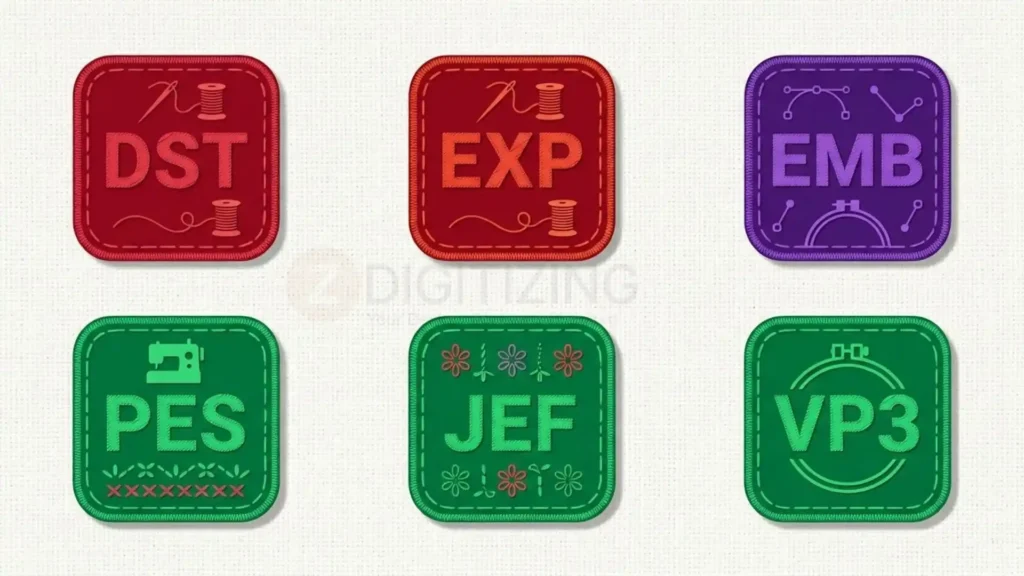
When selecting embroidery file types, picking the correct extension always comes down to what your specific machine equipment or digitizing software can process. Common formats such as DST, PES, JEF, EXP, and VP3 are built for different embroidery systems, while native formats such as EMB are primarily used for editing and preserving the working design. The important distinction is that a file extension does not make an embroidery design good.
The file must contain usable stitch information, match the machine’s requirements, and be properly digitized for its intended fabric, size, and placement.
The Complete Guide to Embroidery File Types & Uses
What Are Embroidery File Types?
Embroidery file types function as digital instruction sets that translate raw visual artwork into precise mechanical movements for an embroidery unit. Rather than preserving standard graphic elements like pixels or vector paths, a production-ready file holds exact needle coordinates, stitch density, thread stops, color orders, and machine commands.

That is why static images cannot simply be renamed to match different embroidery file types and expected to stitch. The artwork has to be translated into actual embroidery data first.
To visualize how a design moves from concept to finished garment, follow this sequence:
Artwork → Digitizing → Embroidery file → Machine → Stitched design
The file sits between the digitizing process and the embroidery machine. If that file is incompatible, incomplete, corrupted, or unsuitable for the machine, the design may fail to load or stitch as intended.
Why Embroidery File Formats Matter
Understanding format distinctions is critical because individual embroidery setups decode digitizing data through entirely different proprietary systems.
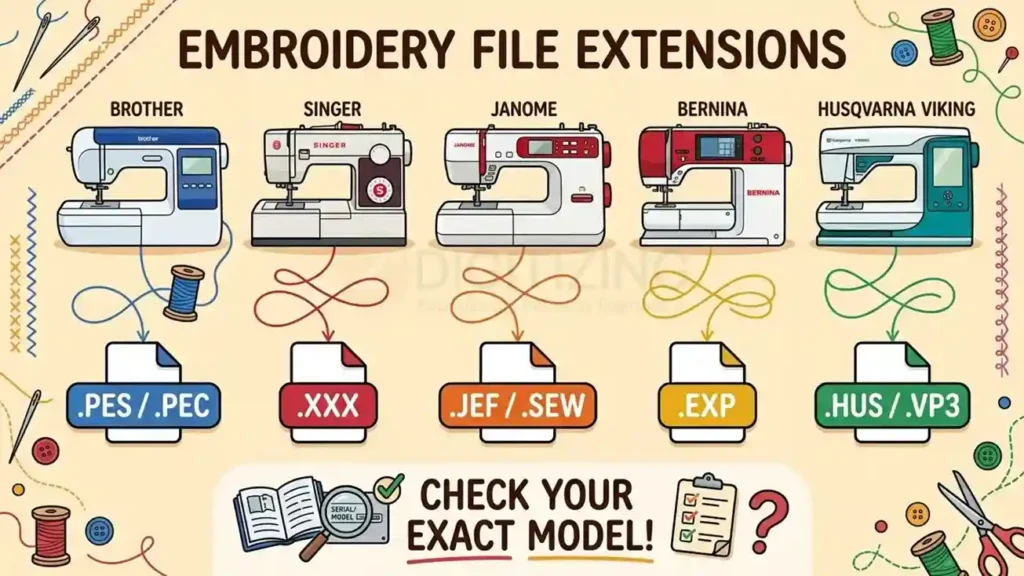
A machine running a Brother embroidery file format typically expects PES, while a system using a Janome embroidery file format defaults to JEF. Janome commonly uses JEF, while commercial Tajima workflows frequently use DST. Other systems use formats such as EXP, VP3, HUS, or XXX. Official machine manuals highlight that file compatibility varies significantly across different equipment generations, even under the same manufacturer logo—making model-level verification essential prior to exporting.
The format can affect:
- Machine compatibility: Whether the design can be loaded or transferred.
- Color information: Whether thread colors or sequences are retained.
- Machine commands: Whether supported trims, jumps, or other instructions are preserved.
- Editing: Whether the file can be meaningfully modified after export.
- Production accuracy: Whether the exported design behaves as expected on the target machine.
Oops, requesting a generic “embroidery file” without specifying your equipment details is where costly production mix-ups usually begin. A digitizer may have created the design correctly, but the wrong export format can still prevent the machine from using it properly.
The Three Main Types of Embroidery Files
The easiest way to understand embroidery design file types is to divide them into three practical groups: expanded stitch files, machine-specific files, and native working files.
The boundaries are not identical across every software platform, but this classification makes comparing various embroidery file types much easier to understand.
File category | Examples | Main purpose | Usually editable as a full design? |
Expanded/stitch formats | DST, EXP | Transfer stitch data for production | Limited |
Machine-specific formats | PES, JEF, VP3, HUS, XXX | Match particular machine ecosystems | Limited |
Native working formats | EMB, OFM, PXF | Preserve editable design construction | Yes, in compatible software |
Expanded or Stitch Formats
Expanded formats primarily preserve the stitch information needed to reproduce a design.
DST and EXP are common examples. They are widely used in production because they provide practical machine-readable stitch data.
However, expanded files carry less design metadata than a native working file. Take industrial expanded files as an example: they encode exact needle coordinates and jump commands while stripping out thread color metadata, requiring machine technicians to map thread cones manually on the shop floor. This is one reason a DST embroidery file should not automatically be treated as the complete master version of a design.
Machine-Specific Formats
Machine-specific formats are designed around particular embroidery systems.
Examples include:
- PES for many Brother and Baby Lock workflows
- JEF for Janome systems
- VP3 for many Husqvarna Viking and Pfaff systems
- HUS for certain Husqvarna Viking workflows
- XXX for Singer workflows
These formats can preserve information that is useful to the intended machine or software environment.
However, “machine-specific” does not mean that one extension works on every model from that brand. Brother, for example, documents models that support PES, PHC, DST, and other formats, while its software can import additional third-party formats.
Native Working Formats
Native formats are different because they are designed to preserve the editable construction of an embroidery design.
An EMB embroidery file, for example, is associated with Wilcom’s embroidery software and can preserve design information that is useful when making future changes.
A native working file can be valuable when a customer later asks for:
- A different size
- New thread colors
- Lettering changes
- Different stitch densities
- Fabric-specific adjustments
- A new machine export
A finished machine file generally does not preserve every original design object and setting in the same editable form.
Machine Embroidery File Formats vs Native Files
A common mistake is assuming that the file you send to the machine should also be the file you keep as the design master.
They serve different purposes. Understanding machine embroidery file formats is essential for a smooth production workflow because the machine requires precise, readable stitch instructions.
A native working file is focused on future editing: the digitizer needs the original objects, stitch settings, sequencing, and other construction information available in the software.
For example:
Native master: EMB
↓
Required machine export: DST / PES / JEF / VP3
↓
Production: Embroidery machine
Keeping the native master before exporting production-ready embroidery file types makes future revisions much easier.
Matching Your Machine Setup to the Correct File Format
Before downloading or ordering embroidery file types, identify your exact machine brand and model.
The general relationships below are useful starting points, but they should not replace the machine manual.
Machine brand/family | Common format(s) | Important note |
Brother | PES, with additional formats on some models | Check exact model |
Baby Lock | PES and other supported formats | Model-specific |
Janome | JEF | Newer systems may support JEF+ / JPX |
BERNINA | EXP and ART workflows | Software/model dependent |
Husqvarna Viking | VP3, HUS and other legacy formats | Generation matters |
Pfaff | VP3 and older formats | Model-specific |
Tajima | DST | Common commercial workflow |
Melco | EXP / OFM workflows | Depends on production setup |
Singer | XXX and other supported formats | Model-specific |
Barudan | Multiple commercial formats | Controller/model dependent |
Ricoma | DST and other supported formats | Check machine documentation |
Manufacturer documentation supports the need for this model-level approach. Janome’s own software documentation lists JEF, JEF+, and JPX for supported Janome machines, while Brother documentation shows that individual machines can accept different combinations such as PES, PHC, and DST.
So if someone says, “I need a Brother file,” the better question is:
“Which Brother machine model are you using?”
That single detail can prevent an otherwise unnecessary conversion or failed file transfer.
The Most Important Rule Before Choosing a File
Do not select embroidery file types based only on an extension you recognize.
Instead, identify:
- The exact embroidery machine
- The machine’s supported file formats
- The required design size
- The hoop or embroidery area
- The fabric and placement
- Whether you need an editable master file
- Whether the design has already been digitized
This matters because two files can contain the same basic logo while producing different results after export, particularly when the design needs machine-specific adjustments.
A commercial shop producing a logo on a multi-needle machine may request DST, while a home embroiderer with a Janome may need JEF. Neither file is inherently “better.” The correct choice is the one that fits the production system.
And that distinction will become even more important when comparing DST, PES, JEF, EXP, VP3, and the artwork formats used before digitizing.
The Most Common Embroidery File Extensions Explained
Different embroidery file extensions serve different purposes. Some are widely used for commercial production, while others are associated with home embroidery machines or particular software systems. Understanding their differences helps you choose the right file without assuming that every format works on every machine.
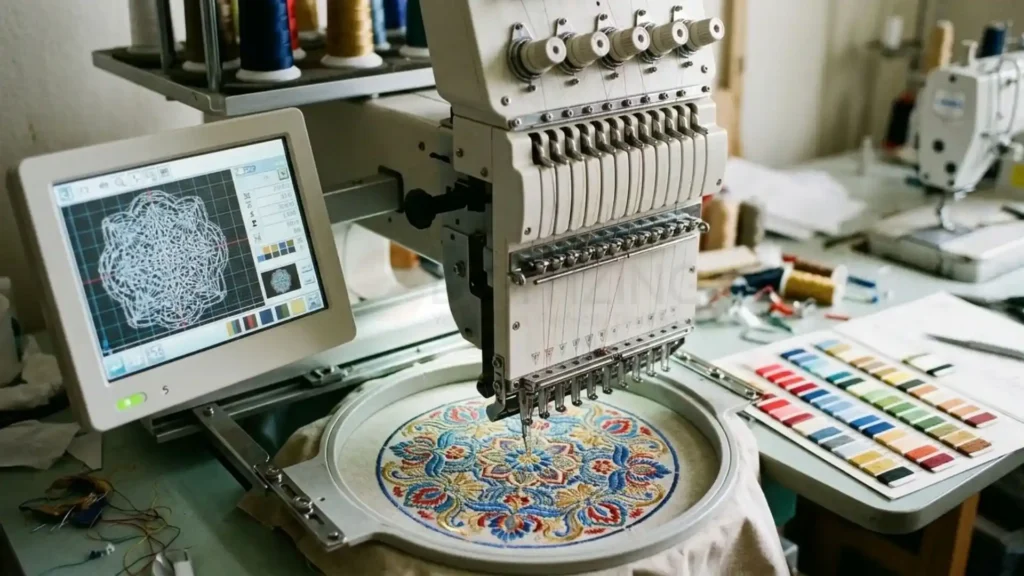
DST: A Common Choice for Commercial Embroidery
A DST embroidery file is the standard Tajima embroidery format used across commercial multi-needle workflows. It primarily stores stitch movements and machine commands rather than the complete editable construction of the original design.
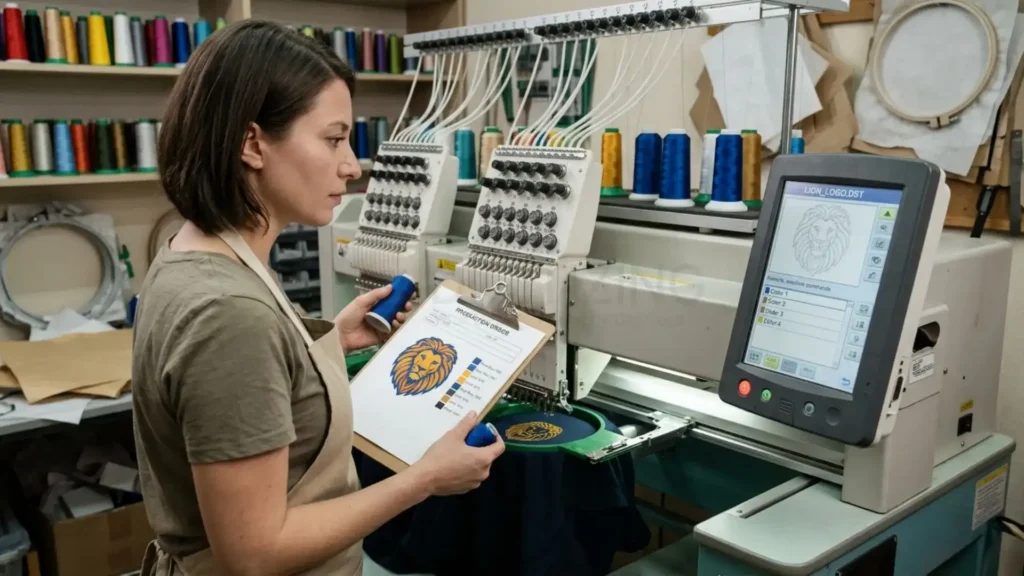
DST is useful when a production machine or embroidery shop requires a straightforward stitch file. However, it has limitations: thread-color names and other design information may not be retained in the same way as in richer formats. Color changes may still be represented by machine commands, but the operator may need to assign the correct thread colors separately.
Choose DST when the receiving machine or production workflow requires it. Keep the original editable design as well, especially when future revisions are likely.
PES: Commonly Used for Brother and Baby Lock
A PES embroidery file is commonly associated with Brother and Baby Lock embroidery systems. Depending on the file version, machine model, and software, it can retain useful information such as thread colors and design-related metadata.
PES is often a convenient option for home embroidery because compatible software and machines can display design information that may be less apparent in a basic stitch-only file.
However, a PES file is not automatically compatible with every Brother or Baby Lock model. Older machines, newer machines, and different software versions may support different formats or features.
If a design fails to load, check the machine’s manual and supported file versions before converting it repeatedly.
EXP: Used in Several Professional Embroidery Workflows
An EXP embroidery file functions as a primary Melco embroidery format and is also widely supported within a Bernina embroidery file format workflow.
EXP commonly carries stitch data for production, but its accompanying color information and handling can depend on the software and workflow used to create or transfer the file. Some systems use an additional color-information file alongside EXP.
Oh, this distinction matters when sending a design to another shop: delivering the stitch file alone may not give the receiving operator all the color information they expect. Confirm whether the receiving system requires a companion file or a particular export option.
JEF: A Common Janome Format
A JEF embroidery file is commonly used by Janome embroidery machines. Supported Janome systems and software may also work with related formats, including JEF+ and JPX.
These extensions should not be treated as interchangeable simply because they belong to the same machine ecosystem. Support depends on the model and software version, and a format intended for a newer workflow may not work on an older machine.
For a reliable handoff, verify the exact Janome model, the required design dimensions, and the format accepted by that machine.
VP3: Used in Husqvarna Viking and Pfaff Ecosystems
A VP3 embroidery file serves as a modern Pfaff embroidery file format and is equally common in a Viking embroidery format setup. It is one of several formats found across these machine families, alongside older formats such as HUS and VIP.
VP3 may preserve useful design and color information depending on the software used, but it should still be treated as a machine-oriented file rather than a guaranteed, fully editable master.
Do not assume that changing the extension or exporting to VP3 will preserve every original object, setting, or scaling capability. Always inspect the exported design before production.
HUS and Other Older Machine Formats
A HUS embroidery file represents an older Husqvarna Tajima embroidery format legacy workflow, while XXX serves as a standard Singer embroidery file format. You may also encounter VIP, PCS, SEW, XXX, and other legacy or machine-related formats when working with older designs or equipment.
These files can remain useful when the target machine supports them. The challenge is compatibility: a format that works on one generation of machine may not be accepted by another.
When handling an older design, preserve the original file and test the converted version in compatible software before sending it to the machine.
ART, EMB, and Other Software-Related Formats
Not every embroidery extension serves the same purpose. Some formats are closely tied to particular software environments, and some are intended to retain editable design construction.
- ART: Associated with BERNINA embroidery software workflows. The exact ART version and its compatibility depend on the software and machine ecosystem.
- EMB: A native working format associated with Wilcom software, useful for preserving editable design elements and settings.
- OFM: Associated with Melco embroidery software workflows.
- SWF embroidery file format: Extensions used across commercial SWF machines.
- Barudan embroidery format: Commercial formats (like DSB) built for multi-head Barudan controllers.
- Ricoma embroidery file format: Multi-format support (DST/DSB) used across modern Ricoma series.
The key difference is not simply which brand name appears beside a format. It is whether the file is intended for machine execution, software editing, or a specific transfer workflow.
Embroidery Files vs. Artwork and Vector Files
One of the most important distinctions is the embroidery file vs vector file difference. Artwork describes how an image should look; an embroidery file contains stitch instructions that tell the machine how to produce it.
A vector graphic can be an excellent starting point for digitizing, but it is not automatically ready for embroidery. Stitch type, direction, density, underlay, pull compensation, trims, and sequencing must be planned for the material and intended size.
SVG vs Embroidery File: Vectors to Stitch Paths
An SVG vs embroidery file comparison is really a comparison between scalable artwork and machine-ready stitch data.
SVG stores vector shapes and paths. It can be useful for preparing a logo for digitizing, but an SVG does not normally contain the full set of embroidery instructions needed by a machine.
Converting SVG artwork into a usable embroidery design requires digitizing software and appropriate stitch settings. Simply exporting or renaming the file does not complete that process.
AI Graphics vs Machine Stitch Data
An AI vs embroidery file comparison follows the same principle. Adobe Illustrator’s AI format stores editable artwork, while embroidery formats store information for stitching a design.
An AI file may help a digitizer understand the original shapes, lettering, and colors. But the digitizer still needs to determine how those elements should be stitched, including how to handle small details and overlapping objects.
PNG & JPG Raster Images vs Machine Files
A PNG vs embroidery file comparison highlights the difference between pixel-based artwork and stitch instructions. PNG can be useful when a logo has a transparent background, but its pixels do not define stitch direction or underlay.
Likewise, JPG vs embroidery file is not a choice between two interchangeable formats. JPG is a raster image format that can provide a visual reference, while a machine-ready embroidery file contains stitch data.
If the only source available is a JPG or PNG, the artwork may need to be interpreted and digitized before it can be embroidered. The quality of that source image can affect how accurately the original details are reproduced.
EPS Formats in the Digitizing Workflow
An EPS vs embroidery file comparison is similar to the SVG and AI comparisons. EPS can contain vector artwork suitable for preparing a design, but it does not automatically include the machine-specific stitch planning required for embroidery.
A clean vector file can make certain shapes easier to interpret, but the final result still depends on digitizing decisions and production testing.
Choosing Between Artwork, a Machine File, and a Native Master
Select embroidery file types that match your exact stage of production:
Your situation | Best starting point | What to confirm |
You have a logo and need it embroidered | AI, SVG, EPS, PNG, or JPG artwork | Whether the artwork is clear enough to digitize |
You need to run a design on a machine | A compatible machine-ready format | Machine model, hoop size, and supported extension |
You expect future design revisions | The original native working file | Which software can open and edit it |
You are sending a design to another shop | The format requested by the shop | Whether color information or companion files are needed |
You are reusing an older embroidery design | The original file, followed by a verified export if needed | Whether conversion changes the stitch sequence or design dimensions |
This is why it is worth clarifying the intended use before exporting. A file prepared for one machine may not be the most useful file for editing, archiving, or transferring the design to another production system.
How to Convert Embroidery Files Without Unnecessary Quality Loss
An embroidery file format converter can help when the receiving machine does not accept the original format. But conversion does not automatically improve the design, and it cannot restore information that was never included in the source file.
For example, converting a DST file into PES may make it usable in a compatible workflow, but it does not necessarily recover the original editable objects, thread-color names, or digitizing settings.
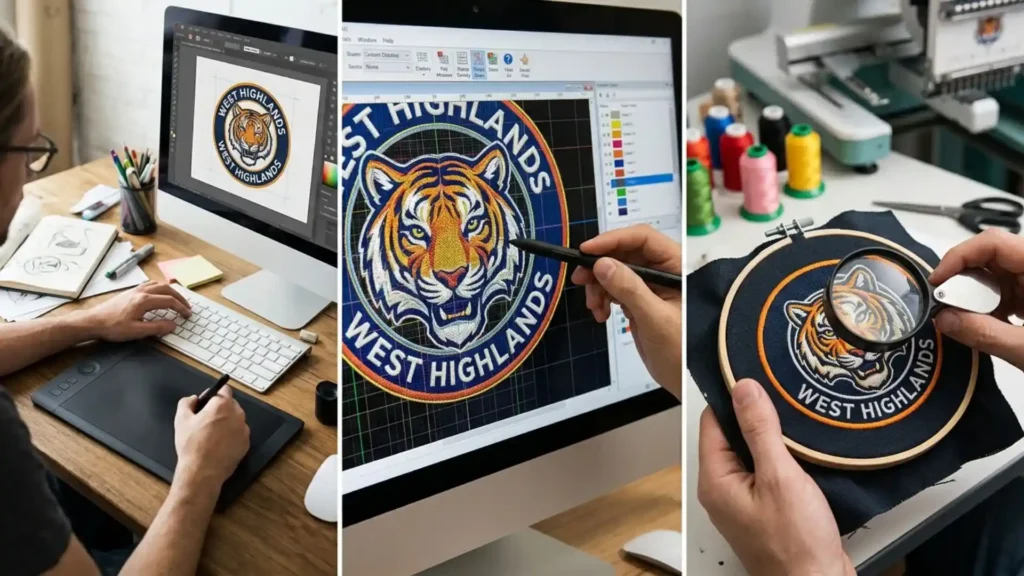
Follow this process before relying on a converted file:
- Keep the original. Save the native working file or original machine file before converting.
- Confirm the destination format. Check the target machine’s manual or software documentation rather than choosing an extension based on brand name alone.
- Check the design dimensions. Confirm that the design fits the intended hoop and placement.
- Inspect the stitch sequence. Look for unnecessary jumps, trims, awkward travel stitches, and unexpected color changes.
- Review density and pull compensation. Converting or scaling stitch-only files without native vector objects can distort stitch density and pull compensation, leading to fabric puckering or gaps around outlines.
- Run a test when possible. A software preview helps, but a stitch-out on suitable material provides stronger evidence of how the design will behave.
Um, don’t confuse a file that opens successfully with a design that is ready for production. A compatible extension only solves the file-reading issue; it does not guarantee good stitch quality.
When Conversion Is Not Enough
Sometimes simply converting between embroidery file types is not enough. If a logo has dense lettering, tiny details, excessive stitches, or poor coverage after resizing, the design may need editing or redigitizing.
Machine files store the stitch plan that was exported. When the original object-level construction is missing, a digitizer may have limited control over the design’s underlying stitch logic.
Working with professional embroidery digitizing services ensures your artwork is properly converted into native master files, making it easy to adjust density and scaling for different fabrics or placements later.
A Practical Rule for File Selection
Choose a machine format based on the receiving equipment, an artwork format as a source for digitizing, and a native working file for future editing. These are related parts of the same workflow, but they are not interchangeable.
Once the correct format is established, the next priority is checking whether the design itself is suitable for the fabric, size, and production conditions. That is where compatibility checks, common file errors, and practical troubleshooting become essential.
Common Embroidery File Problems and How to Fix Them
Even when working with compatible embroidery file types, a design can still run into issues during transfer or actual stitching. The file extension is only one part of the process; machine compatibility, design dimensions, stitch data, and export settings also matter.
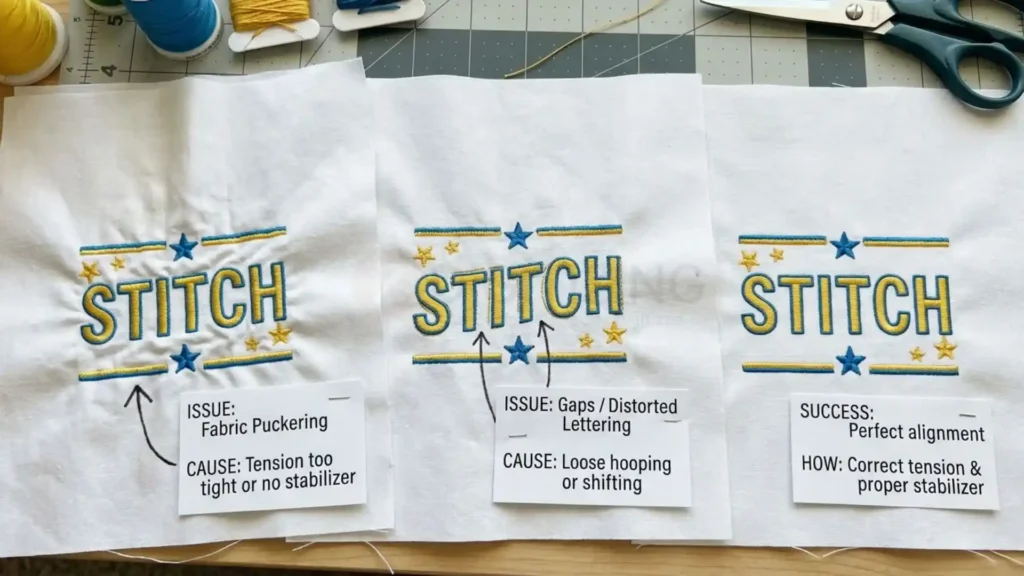
Use these checks to identify the likely cause before converting or recreating a design.
Problem | Possible reason | What to check |
The machine cannot find or open the file | Unsupported extension, version, or transfer method | Confirm the exact machine’s supported formats and file-transfer requirements |
The design opens but the colors look wrong | Thread-color information is missing or interpreted differently | Review the color sequence and assign the correct thread chart |
The design exceeds the hoop area | Incorrect export size or incompatible design dimensions | Check the design’s width, height, and permitted embroidery area |
Stitches are missing or the design looks distorted | Damaged file, unsupported data, or conversion issue | Reopen the original and compare it with the exported version |
The fabric puckers or the design feels too dense | Stitch density, underlay, pull compensation, or fabric choice may be unsuitable | Review digitizing settings and test on the intended material |
Small text becomes difficult to read | Lettering is too small or stitch construction is unsuitable | Adjust the lettering, simplify details, or redigitize for the intended size |
The machine stops at unexpected points | The exported sequence or machine commands may need review | Inspect trims, jumps, color stops, and the stitch sequence |
When an Embroidery Machine Does Not Recognize a File
Start with the simplest checks:
- Confirm that the file extension is supported by the exact machine model.
- Check whether the file is stored in the correct folder or transfer location.
- Verify the filename for special characters, spaces, or length restrictions specified in your machine manual, and confirm your USB drive is formatted correctly (typically FAT32).
- Confirm that the design fits the machine’s supported embroidery area.
- Open the file in compatible embroidery software to check whether it can be read.
- Export a fresh copy from the original file if the current file appears damaged or incompatible.
Oops, changing .dst to .pes, or changing any other extension manually, does not convert the underlying data. Use compatible embroidery software to export the design into the required format.
When the File Opens but the Stitching Looks Wrong
A successful file transfer does not guarantee a successful stitch-out. If the machine loads the design but the result contains gaps, excessive thread breaks, puckering, or distorted lettering, investigate the design construction rather than focusing only on the extension.
For example, a logo digitized for a stable woven fabric may need adjustments before being stitched on a stretchy polo shirt. Specialized applications like cap logo digitizing require specific adjustments to stitch density, underlay, stitch direction, and pull compensation to prevent center-seam distortion.
A conversion may preserve the existing stitch plan without correcting its underlying problems. If the original file was poorly digitized, the better fix may be to edit or redigitize the design for the intended fabric and placement.
Mistakes to Avoid When Working With Embroidery Files
A few avoidable habits cause unnecessary delays for both home embroiderers and commercial production teams.
- Assuming one format works on every machine: Always verify the model-specific requirements.
- Renaming extensions instead of converting: A filename change does not transform the file data.
- Treating artwork as a machine-ready design: Vector and image files generally need digitizing before embroidery.
- Deleting the native master: Keep an editable source whenever one is available.
- Resizing without checking stitch quality: Changing dimensions can affect density, coverage, and small details.
- Ignoring color information: Confirm the thread sequence and color assignments after export or conversion.
- Skipping the test stitch-out: A preview can reveal many issues, but it cannot fully reproduce how fabric and thread behave during stitching.
The most reliable workflow is to confirm compatibility first, inspect the exported design second, and test the result on the intended material whenever practical.
What to Check Before Sending an Embroidery File to Production
Before sending designs to premium embroidery digitizing services in USA or handing files off to a machine operator, use this short quality-control check to prevent costly production errors.
- The file format is supported by the target machine.
- The design dimensions fit the intended hoop or embroidery area.
- The stitch sequence and color stops have been reviewed.
- The design has been checked for unnecessary jumps, trims, and travel stitches.
- Stitch density and underlay suit the intended fabric and design size.
- The file opens correctly in the intended software or machine workflow.
- The original file or editable master has been preserved where available.
- A test stitch-out has been reviewed when the job’s complexity or production requirements justify it.
This check is especially valuable for repeated orders. A design that worked on one machine or fabric should still be verified if the production setup, material, size, or receiving machine changes.
Verifying File Performance on the Machine
When testing different embroidery file types, choosing the correct format gets your design onto the machine, but accurate digitizing determines how clean it stitches on fabric. Inspecting thread sequences, checking hoop clearance, and running a quick test on scrap material before starting full production prevents broken needles, puckered garments, and wasted shop time.
If you need custom files digitized for your specific equipment and fabric, ZDigitizing prepares production-ready designs tailored to your exact machine setup. New customers receive 50% off their first order to test our turnaround speed and stitch precision firsthand.
Frequently Asked Questions About Embroidery File Types
DST files store stitch coordinates and machine commands, but they do not save thread color data. Your embroidery software automatically assigns default colors to distinguish the stops, which you must manually match to your actual thread chart before production.
No. Most embroidery machines cannot read compressed ZIP files directly from a USB drive. You must extract the file folder on your computer first and copy only the specific machine format (such as .pes or .dst) to your drive root.
It depends on the format and machine memory. Standard DST files can hold millions of stitches, whereas older home machine formats or legacy systems may cap files at 50,000 to 100,000 stitches per hoop section.
No. Format converters only change the digital container and extension; they cannot fix underlying digitizing errors like improper underlay, loose density, or lack of pull compensation. Quality issues require editing the original native design.
This usually occurs if the file contains hidden travel stitches or an uncentered origin point that extends past your hoop’s boundary limits. Centering the design origin in your software before exporting solves the issue.