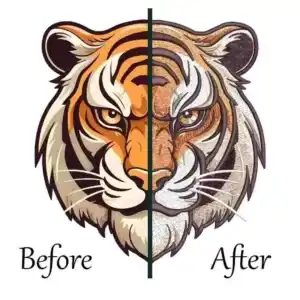
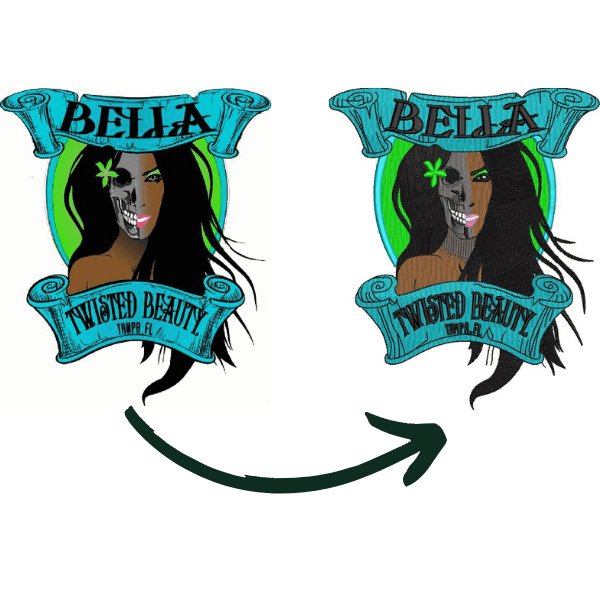
Many crafters face blurry designs when they resize JPG photos for prints or embroidery. If you need sharp, scalable graphics, learn how to convert JPG to vector art online for free right now. Top tools like Vectorizer.io let you upload a JPG, auto-trace it, and download a clean SVG file in under 2 minutes, no software needed.

This guide shares easy methods that beat paid options for most users. Let’s dive in and fix those pixel problems today.
How to Convert JPG to Vector Art Online for Free (Easy Methods)
What Is JPG to Vector Conversion and Why Do It?
Convert JPG to vector art means turning pixel-based images into smooth, editable paths. JPG files store photos as tiny squares called raster pixels. They look great at one size, but get blurry if you zoom or print big.
Vector art uses mathematical lines and curves instead. It scales perfectly for T-shirts, signs, or embroidery without losing quality. That’s why designers love JPG to vector file changes.
Why is it important to convert JPG to vector art?

- Endless resizing: Perfect for large banners or tiny icons.
- Smaller files: Vectors load fast on websites.
- Easy edits: Change colors or shapes in tools like Inkscape.
- Pro results: Ideal for vinyl cutting or stitching machines.
For embroidery fans, vectors ensure clean stitches. No more fuzzy edges on your custom patches. This simple switch boosts your crafting game.
Raster vs. Vector Images: Quick Guide
Raster images like JPG are great for real photos. They capture details with millions of pixels. But enlarge them, and you see blocky pixels, called pixelation.
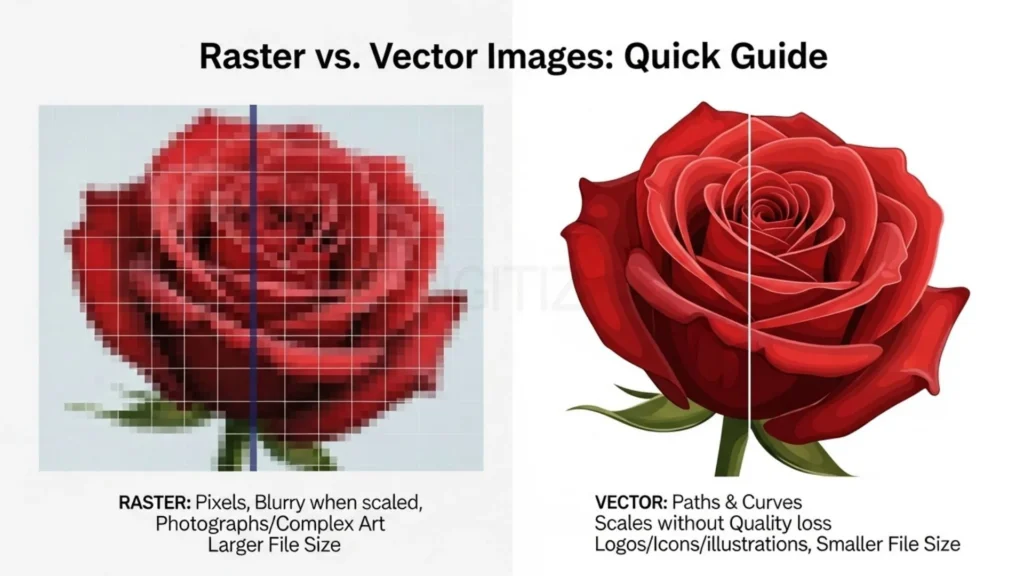
Vector images build shapes with points and lines. Software draws them on the fly, so they stay crisp at any size. Think of it like a recipe: vectors give instructions, rasters show the baked cake.
Here’s a simple breakdown:
Feature | Raster (JPG) | Vector Art |
Scalability | Blurry when enlarged | Stays sharp forever |
File Size | Large for details | Small and efficient |
Best For | Photos | Logos, embroidery |
Editing | Pixel-based | Paths and shapes |
Switch to vectors for crafts. A raster logo might jag on a big banner. The vector version shines. This is key for convert raster to vector tasks in printing or stitching.
Best Free Online Tools to Convert JPG to Vector Art
While many websites claim to convert JPG for free, I tested over 10 different options to find the ones that actually work for embroidery, printing, and craft machines like Cricut or Brother. These tools use “auto-trace” technology to scan your image and build smooth lines instantly.
Quick Comparison of the Best Tools
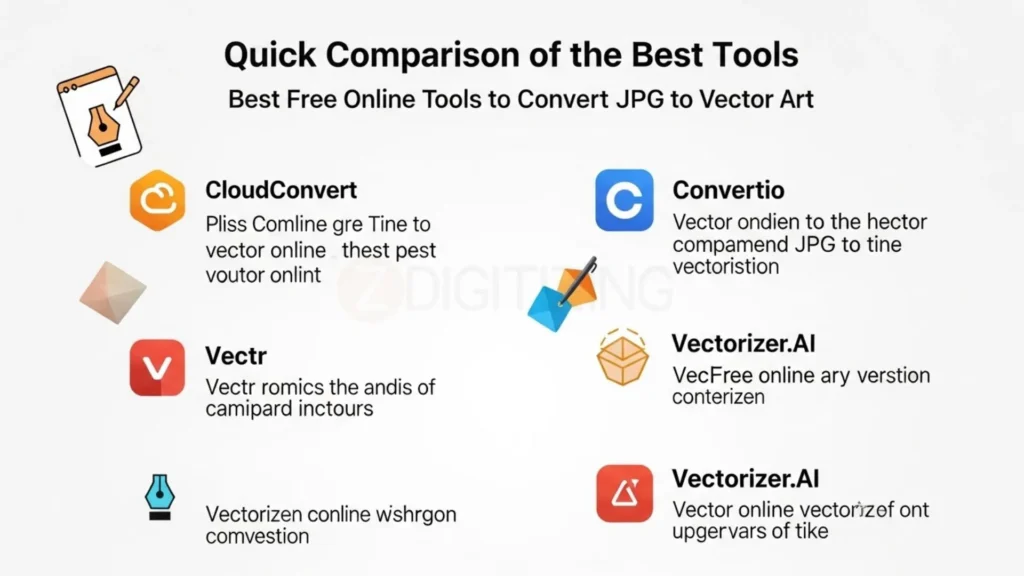
If you need to convert JPG to vector art free without downloading heavy software, these online free JPG to vector converter are the most reliable:
Tool | Why It’s Great | The Catch (Limits) | Best Use Case |
Vectorizer.io | Very easy to use; lets you edit colors and preview the result. | Free files must be under 500KB. | Beginners and simple logos. |
Autotracer | Supports many formats like SVG and PDF; has detail sliders. | May include a watermark on some free files. | Quick, one-off projects. |
Convertio | Allows you to upload multiple files at once; supports 50+ formats. | Limit of 100MB of data per day for free users. | Bulk projects or embroidery files. |
Online-Convert | Includes a “despeckle” tool to clean up messy or grainy images. | The site has many ads and no free batch processing. | Cleaning up low-quality photos. |
Vector Magic | Extremely accurate AI; gives you very smooth, professional paths. | Only offers 2 free “trial” conversions per day. | Professionals who need perfect lines. |
Which Tool Should You Choose?
- For Speed: Vectorizer.io is the overall winner. You just upload your image, make a few small tweaks, and download your new file. It is the fastest way to convert JPG to vector art if you are in a rush.
- For High Quality: If your image is complex, Vector Magic handles the “math” of the curves better than anyone else. It feels like using professional vector tracing software right in your browser.
- For Multiple Files: If you have a folder full of images, Convertio is the best choice because it handles batch uploads easily.
Method 1: Convert JPG to Vector Art with Vectorizer.io (Easiest for Beginners)
If you are looking for the fastest way to convert to vector art, Vectorizer.io is the top online vector converter. It is a free, web-based tool that handles logos and embroidery designs exceptionally well. You don’t even need to create an account to get started.

This tool is perfect for crafters who need to turn a standard photo into a “stitch-ready” file for embroidery or a clean cut-file for a vinyl machine.
Step 1: Upload Your JPG File
First, head over to the website. You can click “Choose File” to select your image or simply drag and drop your file directly onto the page.
Note: The free version supports files up to 500KB, which is plenty of space for most logos and simple graphics.
Once uploaded, the site will show your original image on the left side of the screen.
Step 2: Adjust the Trace Settings
To convert JPG to vector art with the best results, you need to tell the AI how much detail you want:
- Detail Level: Use the slider to find a balance. Move it lower for simple shapes and higher for busy images.
- Color Count: For embroidery or screen printing, try to keep the colors under 10. This makes the final file much easier to work with.
- Process: Click the “Trace” button. In just a few seconds, the vectorized version will appear on the right. You can zoom in to make sure the edges are smooth and sharp.
Step 3: Preview and Download
If you are happy with how the lines look, click “Download SVG.” You now have a scalable vector file that you can resize to the size of a billboard without any blurriness!
Pro Tip: Before you convert JPG to vector art, use a basic program like Paint to crop out any extra white space around your logo. Cleaning the image first can improve your results by 50%.
Method 2: Use Autotracer for Fast JPG to Vector Conversion
Autotracer is perfect for anyone who needs to convert JPG to vector art online without any complicated settings. While the free version sometimes adds a tiny watermark, the speed and accuracy for basic shapes make it a favorite for many creators.
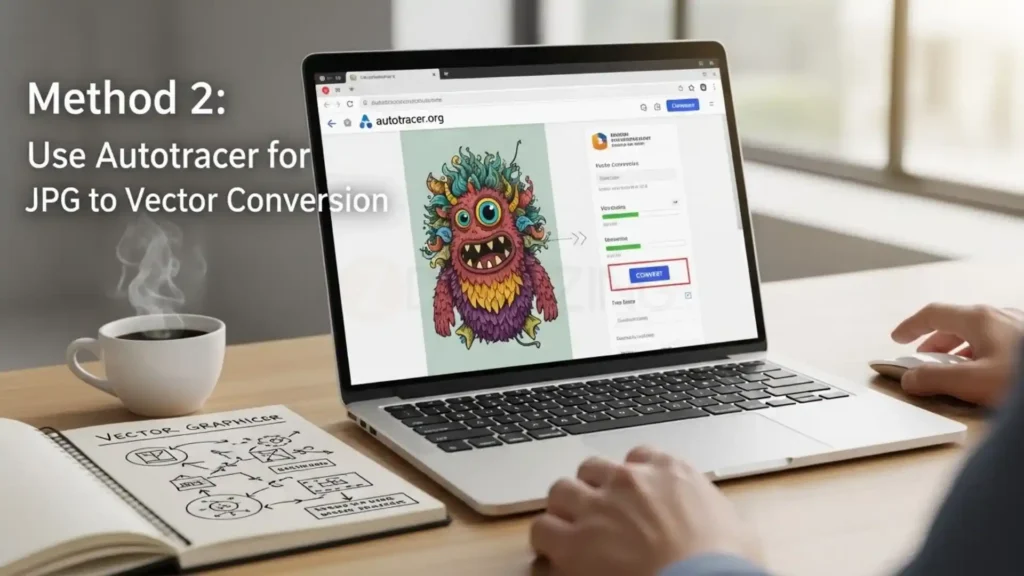
This tool is a great “no-fuss” option when you need to convert image to vector graphics and export it into multiple file formats.
Step 1: Upload Your Image
First, go to the Autotracer website. You can simply drag your JPG file into the upload box or click to browse your computer.
- Expert Tip: While there isn’t a strict size limit, keeping your file under 1MB will make the process much faster.
- Once the upload is finished, a preview of your image will load immediately.
Step 2: Fine-Tune the Detail and Colors
To convert JPG to vector art with the best results, you have a few simple settings to adjust:
- Color Selection: Set this between 1 and 30. For embroidery or vinyl cutting, staying between 5 and 8 colors usually works best.
- Despeckle: This is a great feature that removes “noise” or grainy spots from your original photo.
- Tracing Mode: You can choose “Separate Mode” if you want to keep your outlines and color fills as different layers.
- Click “Trace Image,” and your new vector paths will be built in about 10 seconds.
Step 3: Export Your New Vector File
After you convert JPG to vector art, you can look at the paths to make sure they are smooth. You can then download your file as an SVG, PDF, or EPS.
Note: If the colors seem to “bleed” into each other, try lowering the detail slider and tracing again.
Method 3: Batch Convert Images to Vector Graphics with Convertio
Convertio is a top-tier tool for anyone needing to convert image to vector art online in large quantities. Whether you are preparing a full set of icons or several logos for a bulk embroidery project, this tool can handle multiple files simultaneously.
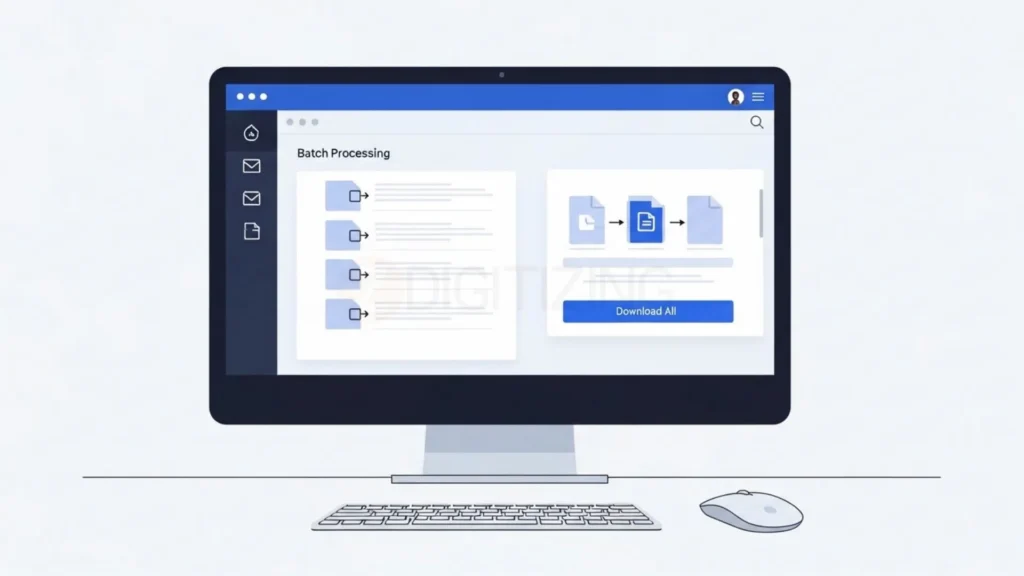
The free version allows you to convert up to 100MB of data daily, which is usually enough to convert JPG to vector art for 20 to 30 different logos.
Step 1: Batch Upload Your JPGs
Go to the Convertio website and click “Choose Files.” You can select multiple images from your computer, Google Drive, or Dropbox.
- Time-Saving Tip: You can even upload a ZIP file containing all your images to speed up the process.
- Once uploaded, use the dropdown menu to select “to SVG” as your target format.
Step 2: Choose Your Vector Output
While Convertio is automated, it allows you to set the quality level. To convert JPG to vector art effectively for machines (like embroidery or vinyl cutters), ensure you select the highest quality setting available.
- Unlike other tools, Convertio doesn’t offer a complex color slider, so it works best if your original JPGs are already clean and simple.
- Click the “Convert” button. The system can typically process 5 to 10 files in under a minute.
Step 3: Download Your Files
Once the conversion is finished, you can download each file individually or download everything as a single ZIP archive.
- The Best Part: Unlike many other free tools, Convertio is watermark-free, meaning your vectors are clean and ready to use immediately.
- After you convert JPG to vector art, always unzip the folder and test the files in a viewer to ensure the paths are exactly where you want them.
Pro Tips for High-Quality JPG to Vector Results
Getting a perfect trace depends heavily on how you prepare your files before you start the automated process. Following these professional strategies will help you convert JPG to vector art with the precision needed for high-end printing or embroidery.
- Start with High-Resolution JPGs: Always use 300 DPI originals for your projects. Blurry or low-quality inputs will lead to jagged paths, so try to crop your images tightly and remove backgrounds in a tool like Canva first.
- Optimize for Embroidery Use: When you prepare a file for stitching, limit your design to 7–10 colors. Too many shades can confuse embroidery software, so always check your stitch count after you convert JPG to vector art by importing the file into a program like Wilcom.
- Remove Noise Before Uploading: Use a free editor like Photopea to erase tiny specks or “artifacts” from your image. A cleaner source image ensures a much smoother JPG to vector conversion.
- Compare Different Outputs: Don’t settle for the first result; run the same image through at least two different online tools to see which one creates the sharpest and most accurate paths.
- Edit Your Files Post-Conversion: Open your final SVG in a free program like Inkscape. This allows you to manually smooth out nodes and ensure your curves are mathematically perfect.
- Use Smart Batch Processing: If you are working with many files, resize all your JPGs to 1000px before uploading. This simple step can speed up the process to convert raster to vector by up to three times.
- Perform a Mobile Quality Check: Test your finished vectors on mobile apps like Vectornator to ensure they scale correctly across all different types of devices.
- Save Multiple Variants: Always export both an SVG for production and a PNG for quick previews. This makes it much easier to share your work with clients or team members.
- Avoid Complex Photographs: Remember that vectorization works best on graphics, logos, and illustrations. If you have a complex photo, try to simplify the shapes before you attempt to convert it.
- Keep Your Files Updated: AI tracing technology improves every year. It is a good idea to re-trace your most important old files periodically to take advantage of new software updates.
By following these steps, you can significantly boost the quality of your graphics. Many businesses use these exact methods to save time and money on high-quality digitizing services or applique digitizing service while maintaining professional standards.
When to Choose Professional Vector Tracing Services?
Free tools handle 80% of jobs, but pros excel for tricky tasks to convert JPG to vector art. While DIY software works for simple shapes, professional intervention is necessary for high-stakes projects. Use them for:
- Complex photos: Such as photo-real portraits or detailed textures.
- Bulk orders: Handling 100+ files weekly with consistent quality.
- Custom embroidery: Managing intricate gradients and density.
For those looking for affordable embroidery digitizing services in Italy, USA,UK etc, ZDigitizing provides high-quality, stitch-tested files that ensure your machine runs smoothly without thread breaks. If free results take over 30 minutes of tweaking, switching to experts saves significant time and prevents production errors.
Always request SVG previews to verify quality before final delivery. For a limited time, you can get a 50% off on your first order to experience our premium quality firsthand.
Whether you need complex vector work or bulk embroidery digitizing, our team is ready to scale with your business needs.
Ready to start? Click here claim your 50% discount today!