Digital graphics come in different formats, and understanding what is a vector file helps you choose the right one. Unlike raster images, vector files use mathematical paths to stay sharp at any size, making them ideal for logos, printing, and embroidery digitizing. This guide explains vector, creation methods, conversions, and their importance in professional design projects.
What is a Vector File and How to Use and Create Them?
What Is a Vector File? (Simple Definition)
It is a digital image format that uses mathematical formulas to define shapes, lines, and curves instead of pixels. When you create a vector graphic file, you’re telling the computer to draw specific paths between points using mathematical equations.
This is completely different from raster images (like JPEG or PNG), which are made of tiny colored squares called pixels.
The key difference that makes a vector graphic file special is scalability. When you zoom in on a raster image, you eventually see individual pixels and the image becomes blurry. When you zoom in on a vector file, it stays perfectly sharp no matter how much you enlarge it.
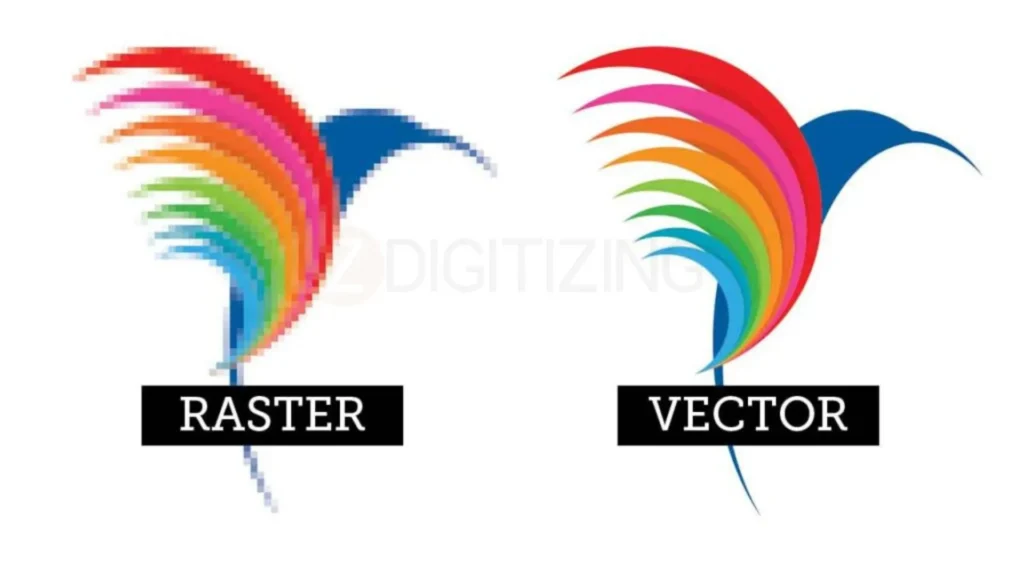
This happens because the computer recalculates mathematical paths instead of stretching pixels, which is exactly what is a vector file designed to do.
Think of it this way: a raster image is like a printed photograph that becomes blurry when enlarged. A vector file is like a recipe that can be used to create the same result at any size while maintaining perfect quality.
Key characteristics of a vector file:
- Made of mathematical paths, not pixels
- Scales infinitely without quality loss
- Smaller file sizes for simple graphics
- Best for logos, icons, illustrations, and technical drawings
- Common formats include AI, SVG, EPS, PDF, and DXF
When someone asks you to “define vector file,” you can say it’s a graphics format that uses math to create scalable images perfect for printing and design work.
This definition matters because using the wrong file type can ruin your printing projects, embroidery designs, or brand materials.
How Vector Files Work (The Math Behind the Magic)
Understanding what is a vector file is simple. A vector file stores instructions for shapes and lines instead of pixels, allowing the design to stay sharp at any size.
Points and Paths
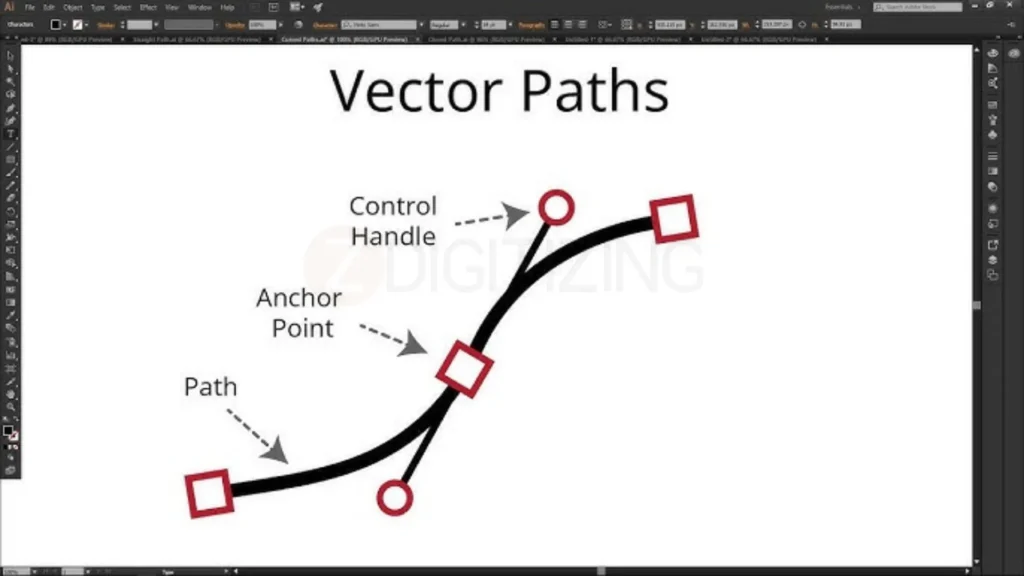
Every vector graphic file is built using points, known as anchor points, connected by paths. Understanding what is a vector file becomes easier when you realize that these paths create shapes and curves instead of using pixels.
For example, to create a simple circle in a vector, the computer doesn’t store thousands of pixels around the edge. Instead, it stores:
- The center point coordinates
- The radius (distance from center to edge)
- The formula for a perfect circle
- The fill color and stroke color
Bezier Curves
Most vector graphics rely on Bezier curves to create smooth shapes and lines. Understanding what is a vector file is easier when you see how anchor points and handles work together to control these curves. A vector graphic uses this system to create scalable designs that remain sharp at any size.
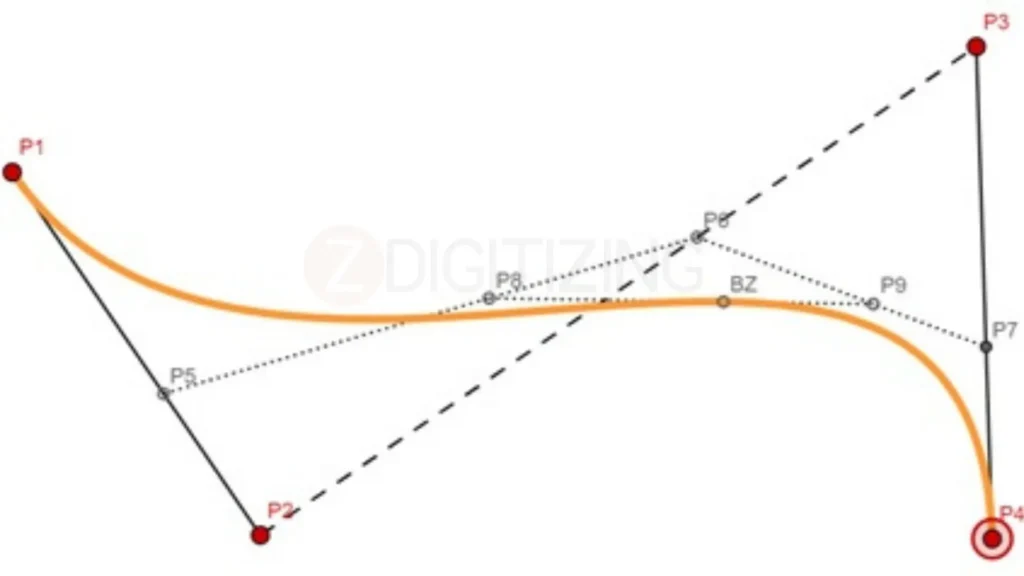
This system is powerful because a complex illustration with thousands of details can be stored using relatively few mathematical instructions. That’s why vector tracing files are often smaller than raster files for simple graphics like logos.
Why Vectors Scale Infinitely?
Understanding what is a vector file helps explain why vector graphics can scale infinitely. When you enlarge a raster image, the computer must create new pixels, which often causes blurry edges.
However, when you enlarge a vector file, the computer simply recalculates the mathematical paths, keeping the design perfectly smooth and sharp at any size.
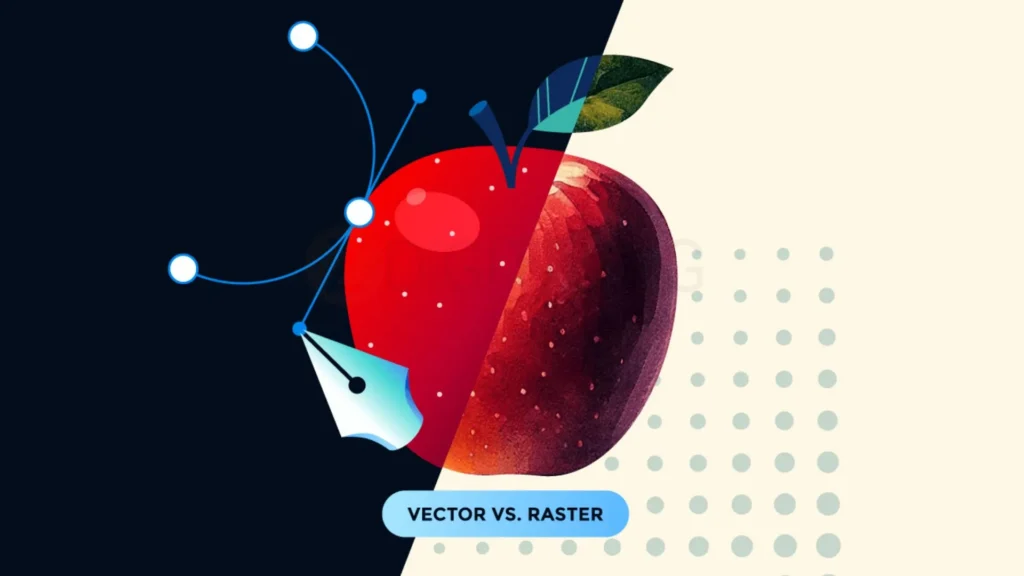
Mathematically, if you have a line from point (0,0) to point (10,10), enlarging it 1000% means the computer calculates a line from (0,0) to (10000,10000). The line is still perfectly straight because the formula hasn’t changed, only the scale has.
This is what “what is vector format” really means in practice: a format where size doesn’t matter because the image is defined by formulas, not fixed pixels. Whether you need your logo at 1 inch or 100 feet, the same vector tracing file works perfectly.
Common Vector File Types and Formats
What are vector files? Different file vector format options are designed for specific software, projects, and output requirements. Understanding these formats helps you choose the right file type for printing, web graphics, embroidery digitizing, and professional design work.
1. AI (Adobe Illustrator)
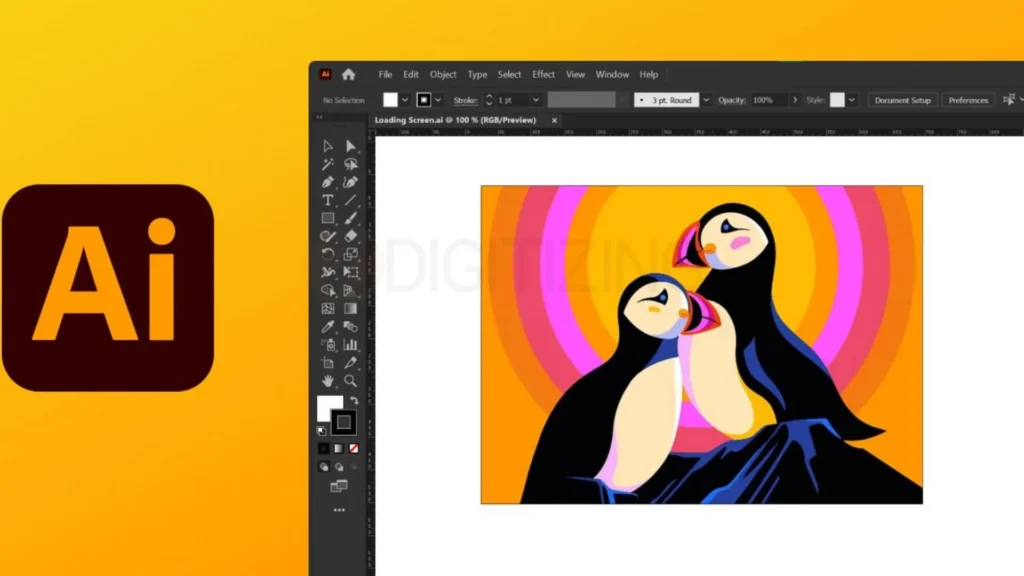
AI is the native file format of Adobe Illustrator, one of the most popular tools for creating vector graphics. Understanding what is a vector file becomes easier with AI files because they preserve editable layers, paths, effects, and other design elements for future editing.
Best for: Professional design work, editing projects, storing master files
Software needed: Adobe Illustrator (full version)
Pros:
- Fully editable with all layers intact
- Supports transparency and advanced effects
- Industry standard for professional designers
Cons:
- Requires paid Adobe subscription
- Not widely supported outside Adobe ecosystem
- Files can be large
When to use: Save your working files as AI format so you can edit them later. Send AI files to professional designers who have Illustrator.
2. SVG (Scalable Vector Graphics)

SVG is a flexible vector format commonly used for websites and digital graphics. Understanding what is a vector file is important because SVG files can be resized without losing quality, making them ideal for logos, icons, and responsive web designs.
Best for: Web graphics, responsive design, icons, interactive graphics
Software needed: Any vector editor (Illustrator, Inkscape, CorelDRAW) or text editor
Pros:
- Works in all modern web browsers
- Scales perfectly on any screen size
- Small file sizes for simple graphics
- Can be animated and made interactive
- Free and open-source
Cons:
- Not ideal for complex illustrations
- Limited support in older software
- Can have security concerns if not properly sanitized
When to use: Use SVG for website logos, icons, charts, and any graphic that needs to look sharp on mobile devices and large desktop screens. This is the best vector image file format for web development.
3. EPS (Encapsulated PostScript)
EPS is one of the oldest and most trusted vector file formats. Understanding what is a vector file helps explain why EPS remains popular for professional printing, as it is supported by most design software and print shops.
Best for: Print production, sharing with printers, legacy systems
Software needed: Most vector programs (Illustrator, CorelDRAW, Inkscape, Adobe Acrobat)
Pros:
- Universal compatibility with print shops
- Works with older software
- Can contain both vector and raster elements
- Industry standard for decades
Cons:
- Older format with limited features
- Larger file sizes than newer formats
- Not web-friendly
When to use: Always provide EPS files to print shops unless they specify another format. EPS is the safest choice for professional printing.
4. PDF (Portable Document Format)
PDF is a widely used format that can store both vector and raster graphics. Understanding what is a vector file is useful because vector-based PDFs can be resized without losing quality while keeping file sizes manageable and easy to share.
Best for: Sharing documents, print-ready files, presentations
Software needed: Adobe Acrobat Reader (free) or any PDF viewer
Pros:
- Universally accessible (free vector files viewers available)
- Preserves vector quality when created properly
- Can combine text, vectors, and images
- Perfect for print-ready files
Cons:
- Can be difficult to edit after creation
- Vector quality depends on how it was exported
- Large files if containing many high-resolution images
When to use: Export to PDF when sending final designs to clients or printers. PDF is excellent for documents that need to look identical on any device.
5. DXF/DWG
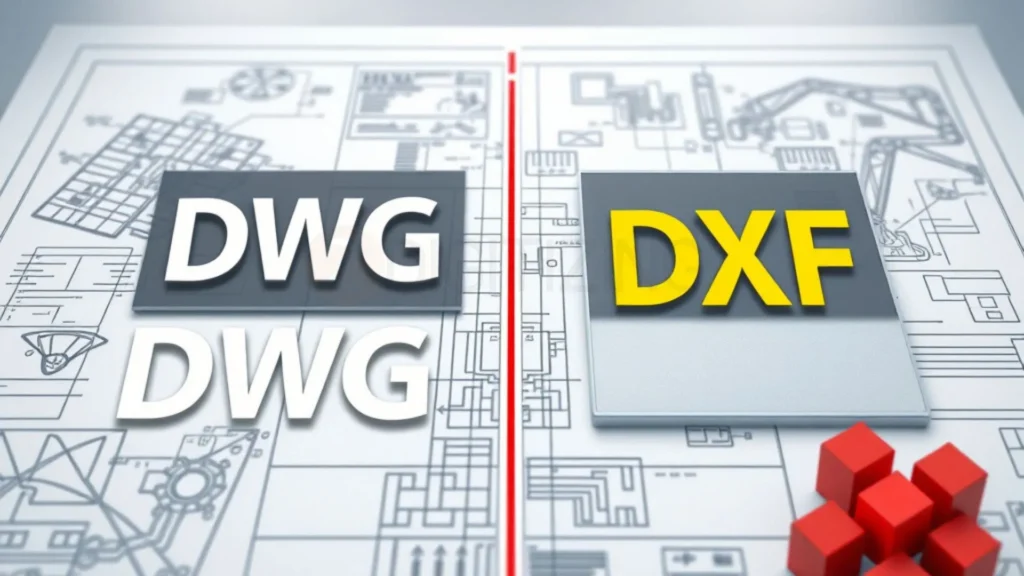
DXF and DWG are vector formats used for technical drawings and machine-based production. Understanding what is a vector file helps explain why these formats are widely used in manufacturing, CAD, and embroidery workflows.
Best for: CAD work, engineering drawings, embroidery digitizing, CNC machining
Software needed: AutoCAD, CorelDRAW, embroidery digitizing software
Pros:
- Industry standard for CAD and manufacturing
- Precisely maintains dimensions and measurements
- Required by many embroidery machines
- Supports layers and complex geometry
Cons:
- Requires specialized software
- Not for general graphic design
- Steep learning curve
When to use: Use DXF for embroidery digitizing projects. Most commercial embroidery machines require DXF or PLT files to create stitch patterns. This vector file format is essential if you’re working with the best embroidery digitizing service provider in USA.
6. PLT (Hewlett-Packard Plotter)

PLT is a vector format created for plotters and cutting machines. Understanding what is a vector file helps show why PLT files are commonly used in textile production, vinyl cutting, and embroidery-related applications.
Best for: Vinyl cutting, embroidery machines, plotter printing
Software needed: Embroidery software, CorelDRAW, SignMaster
Pros:
- Directly readable by embroidery machines
- Simple and reliable format
- Industry standard for cutting plots
Cons:
- Limited to basic vector paths
- Not suitable for complex graphics
- Requires specific software
When to use: Convert your design to PLT when sending files to embroidery machines or vinyl cutters. This is the most common vectorized file format for commercial embroidery.
Vector File vs. Raster File: Key Differences
Understanding what is a vector file helps you see the main differences between vector and raster images. Each format has unique strengths and is suitable for different design and printing needs.
Feature | Vector File | Raster File |
Based on | Mathematical paths and formulas | Grid of pixels (tiny colored squares) |
Scaling | Infinite without quality loss | Becomes blurry or pixelated when enlarged |
Best for | Logos, icons, illustrations, embroidery, text | Photographs, digital paintings, complex images |
Common formats | AI, SVG, EPS, PDF, DXF, PLT | JPEG, PNG, GIF, TIFF, BMP |
File size | Usually smaller for simple graphics | Larger, especially at high resolutions |
Editing | Easy to modify individual elements | Difficult to separate elements |
Transparency | Fully supported | Supported (PNG, TIFF) |
Print quality | Perfect at any size | Depends on resolution (DPI) |
When to Use Vector Files
Understanding what is a vector file helps you know when to use one. Choose a vector file when:
- Designing logos that need to work on business cards and billboards
- Creating graphics for print (business cards, banners, packaging)
- Working on embroidery digitizing projects
- Making icons or illustrations for websites
- Designing for vinyl cutting or laser engraving
- You need to resize your design frequently
When to Use Raster Files
Unlike what is a vector file, raster images are best for photographs and detailed images. Use a raster file when:
- Working with photographs
- Creating digital paintings or artwork with complex textures
- Designing for social media with photo-heavy content
- The image has millions of colors and subtle gradients
- You’re not planning to resize the image significantly
How to Create a Vector File (3 Methods)?
Understanding what is a vector file helps you choose the right creation method. You can create a vector design from scratch, convert an existing image, or hire a professional service depending on your needs.
Method 1: Create a Vector File from Scratch
Creating a vector design from scratch gives you the best quality and full control. You can use vector file converter software like Adobe Illustrator, Inkscape, or CorelDRAW to draw shapes, add text, and build your design layer by layer. This method is ideal for logos, branding, and professional artwork.
Method 2: Convert an Image to Vector
If you already have a PNG or JPG image, you can convert PNG to vector file using image tracing tools. This works best for simple logos and graphics with clean edges. A high-quality image will always produce better results.
Before starting any conversion, it’s important to understand what is a vector file and how vector graphics differ from regular images. This knowledge helps you achieve cleaner and more accurate results.
Method 3: Hire a Professional Service
For complex designs or embroidery projects, hiring a professional can save time and ensure high-quality results. Professionals can provide files in formats like AI, EPS, SVG, and PDF while keeping the artwork clean and editable.
Whether you create, trace, or outsource your artwork, knowing what is a vector file makes it easier to choose the right solution for printing, branding, and embroidery projects.
Why Vector Files Matter (Real-World Importance)
Vector files aren’t just a technical detail, they’re essential for business success, quality printing, and professional design. Here’s why they matter in real-world scenarios.
Printing and Large-Format Graphics
When you print a business card at 3.5 × 2 inches, a raster image might look fine. But when the same logo needs to appear on a 10-foot banner, only a vector file will maintain crisp edges. Print shops universally prefer vector files because they guarantee quality at any size.
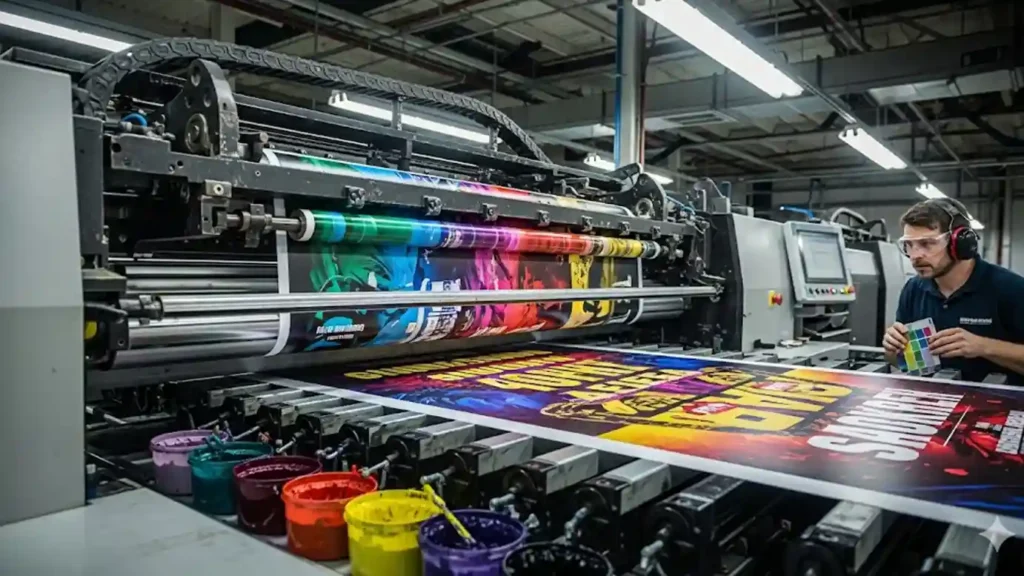
Without vector files, you’d need to create separate versions of your logo for every possible print size. With vectors, one file works everywhere, from pen charms to building signage.
Logo Design and Branding
Your logo represents your entire brand. It appears on business cards, websites, packaging, vehicles, and trade show booths. Each of these applications requires different sizes. A vector file ensures your logo looks perfect everywhere.
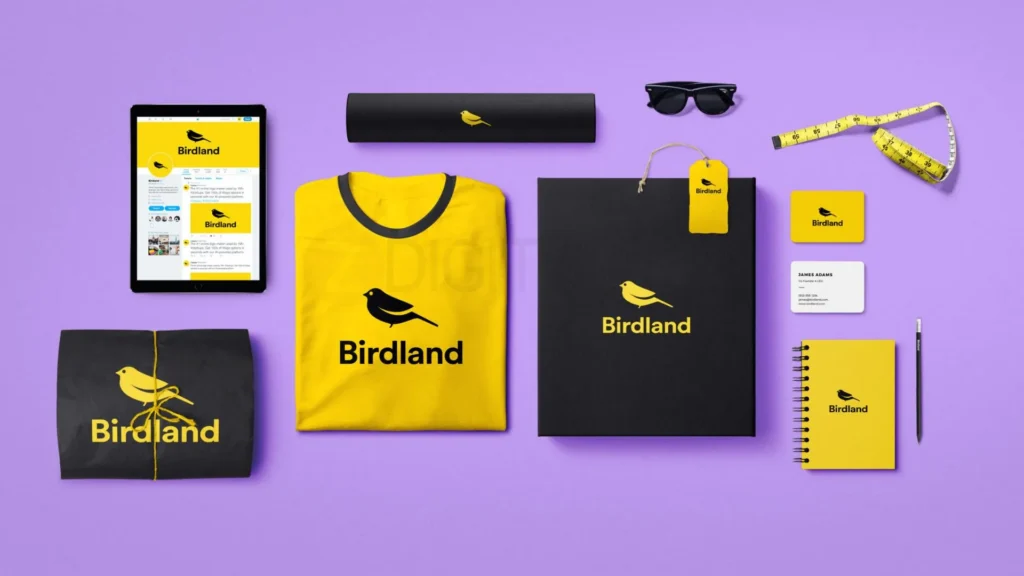
Businesses that start with raster logos often face expensive redesigns later. When your company grows and needs larger signage, you’ll need to recreate your logo as a vector file anyway. Starting with vectors from the beginning saves time and money.
Embroidery Digitizing
Embroidery machines cannot read raster images. They need vectorized files that define stitch paths mathematically. When you send a JPEG to an embroidery machine, it won’t work. The digitizing process converts your design into a vector file format that specifies exactly where each stitch should go.
This is critical for apparel businesses, promotional product companies, and anyone doing custom embroidery. The best digitizing service always requests vector files because they produce better stitch results with fewer errors.
Stitches used in digitizing include fill stitches for large areas, satin stitches for text and borders, and running stitches for fine details. All of these require precise vector paths to work correctly.
Web Design and Performance
SVG files load faster than raster images because they’re smaller and can be compressed more efficiently. They also scale perfectly on any device, from smartwatches to large monitors. This improves page load times and user experience, which directly impacts SEO rankings.

Websites using SVG for icons and logos have better performance scores on Google’s Core Web Vitals. This is another reason why understanding what is vector file matters for digital marketers and web developers.
Manufacturing and CNC Operations
Laser cutters, CNC machines, and 3D printers all require vector files to know where to cut, carve, or print. These machines follow precise mathematical paths, not pixel grids. Without vector files, manufacturing would be impossible at professional quality levels.
Whether you’re cutting acrylic signs, engraving metal, or creating custom packaging, vector files are the standard. This extends to the textile industry where vinyl cutters and heat press machines need vectorized files for precise cutting.
Conclusion
Understanding what is a vector file is essential for design, printing, and embroidery. Vector files use mathematical paths instead of pixels, allowing infinite scaling without quality loss. This makes them indispensable for logos, printing, and what is a vector file applications like embroidery digitizing.
Quality vector files paired with expert digitizing produce clean, professional embroidery. Poor files lead to puckering, thread breaks, and unprofessional results. This is why professional embroidery digitizing is critical for best outcomes.
ZDigitizing provides professional embroidery digitizing services with over 10+ years of experience. Our expert digitizing team, 24/7 working team, and 24/7 customer support ensure your projects succeed. We offer quality guaranteed, preview before payment, free minor edits, prices lower than market, and 50% OFF on first order.
Perfect for left chest embroidery digitizing, full-back designs, or complex artwork. We work with all machine formats (PLT, DST, DXF) meeting the best service provider in USA standards.
Visit ZDigitizing today, place your first order, and get 50% OFF. Experience premium digitizing quality that elevates your brand.