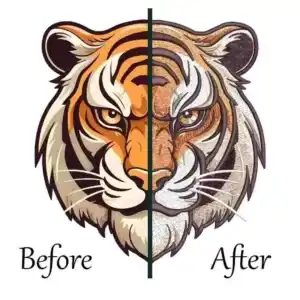
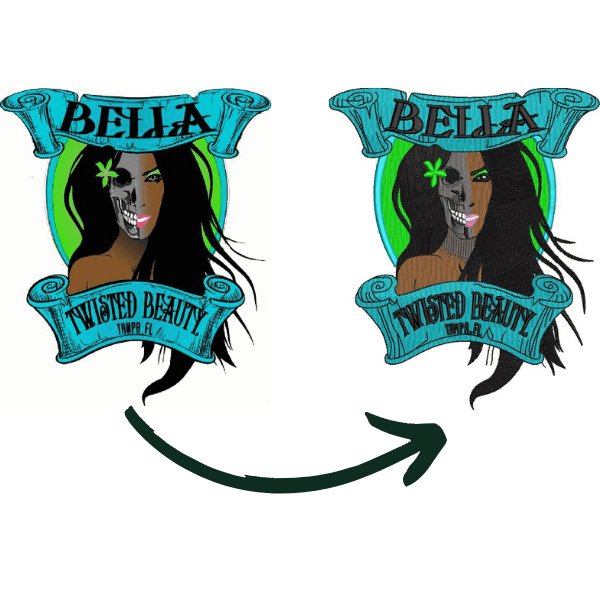
Creating sharp and scalable designs becomes much easier once you understand how to convert PNG to vector the right way. In this guide, we’ll walk you through the full process in Inkscape using simple, practical steps anyone can follow. You’ll learn not just what to do, but why certain tracing settings produce cleaner and more professional results. By the end, you’ll be confident in creating production-ready vector files for printing, cutting, or digital use.

How to Convert PNG to Vector in Inkscape?
Whats Difference Between PNG and Vector?
PNG is a raster image made of pixels, so it can look blurry or jagged when you scale it up too much. Vector art is built from mathematical paths and shapes, so it stays perfectly sharp at any size.
PNG is great for detailed images and transparency on the web, while vector is ideal for logos, print, and designs that must be resized often. When you care about infinite scalability and clean edges, learning how to convert PNG to vector art is a smart move.

Feature | PNG (Raster Image) | Vector Art |
Basic structure | Grid of pixels (bitmap) | Paths defined by points, lines, curves, and shapes |
Scalability | Loses quality and becomes pixelated when enlarged | Scales to any size without losing sharpness |
Typical file formats | .png, .jpg, .gif | .svg, .eps, .ai, .pdf |
Best use cases | Photos, detailed web graphics, images needing transparency | Logos, icons, typography, print and large-format graphics |
File size behavior | Often larger at high resolution | Usually lighter for the same visual size |
Editing approach | Pixel-based editing in raster software | Shape/path-based editing in vector software |
Print quality | Needs high resolution to avoid blur | Naturally crisp at any print size |
Before You Start: Prepare Your PNG for Clean Results
You cannot get a clean result from a messy source. To how to convert PNG to vector with high quality, you must start with the best possible version of your image. A common mistake is trying to trace a thumbnail-sized graphic, which results in wavy lines and distorted shapes.
Resolution Check: Why “Crap In, Crap Out” Matters
If your PNG is only 50 pixels wide and blurry, Inkscape’s engine will struggle to guess where the lines should be. Always try to find the highest resolution version of your file before you start.

If the image is small, sometimes increasing the contrast in a photo editor first helps the tracing engine “see” the edges better. This is a critical step when you are learning how to convert PNG to vector file formats for professional use.
Tips for Cleaning Up Backgrounds
If your image has a busy background, the software might try to vectorize the noise instead of the subject. Use a background remover or crop the image tightly around the logo. This ensures that when you begin the tracing process, the focus remains on the primary design elements, giving you a sharp, usable result.
How to Convert PNG to Vector Free in Inkscape (Step-by-Step)
Now that your file is prepared, it is time to use the software’s powerful engine to convert a PNG to vector paths. This method is the industry standard for creating scalable graphics without spending a dime on expensive subscription software.
Step 1: Open Inkscape and Set Up Your Document

- Launch Inkscape on your computer and create a new blank document.
- Set your page size (File > Document Properties) based on your project, but don’t stress too much; vectors can be scaled later without quality loss.
- Turn on useful helpers like the grid or rulers if you want more precise alignment while working.
Good setup at the beginning makes it easier later when you start vector tracing and refining your paths.
Step 2: Import Your PNG into Inkscape
- Go to File > Import and select your PNG image, then click “Open.”
- In the import dialog, choose “Embed” so the image is stored inside your Inkscape file (instead of just linked).
- Use the Select tool (arrow icon) to resize and position the PNG on the canvas; hold Ctrl while dragging a corner handle to keep the proportions correct.
At this stage, you’re still working with a regular raster image. The next steps are where you begin how to convert PNG to vector in a controlled, professional way.
Step 3: Prepare the PNG for Better Tracing
- Make sure your PNG has clear edges and good contrast; if not, quickly fix it in a raster editor (GIMP, Photoshop, or Photopea) before importing.
- Avoid very small, noisy details and heavy textures, as they can create too many nodes and messy shapes when traced.
- If possible, remove backgrounds or unnecessary elements beforehand, so Inkscape only needs to focus on the main subject.
Clean input produces cleaner paths and a smoother experience once you start how to convert PNG to vector format for professional use.
Step 4: Open the Trace Bitmap Tool

- Select the imported PNG by clicking on it once with the Select tool.
- Go to Path > Trace Bitmap in the top menu; this opens the tracing dialog.
- Move the dialog window to the side so you can see both your image and the preview comfortably.
This tool is the core of how to convert PNG to vector in Inkscape, because it automatically converts pixel information into editable vector paths.
Step 5: Choose the Right Tracing Mode

- For simple black-and-white logos or icons, pick “Brightness cutoff” or “Edge detection,” then adjust the threshold slider until the preview shows solid, clear shapes.
- For multi-color artwork, use “Colors” or “Multiple scans,” increasing the number of scans for more color detail (but note this also increases complexity).
- Always check the “Live preview” box so you can see how your settings affect the result before committing to the trace.
Take time to experiment here; your choices in this step strongly affect the quality and complexity of the paths you’ll edit after you convert a PNG to vector using the auto-trace.
Step 6: Apply the Trace and Separate the Result

- Once you’re happy with the preview, click “OK” in the Trace Bitmap dialog; Inkscape creates a new vector object on top of your original PNG.
- Close the Trace Bitmap window and drag the top object slightly to the side so you can clearly see the difference between the vector and the original raster image.
- Delete the original PNG (if you no longer need it) to avoid confusion, leaving only the newly created vector paths on the canvas.
Now you have a vector version of your artwork, which is a fundamental step in learning how to use Inkscape for embroidery and preparing your design for embroidery digitizing.
Step 7: Simplify Paths and Clean Up Nodes

- With your new vector selected, go to Path > Simplify to reduce the number of nodes while trying to keep the overall shape accurate.
- Zoom in and inspect curves and corners; if Simplify was too aggressive and distorted details, undo and try again more gently or apply it in smaller sections.
- Use the Node tool to manually delete unnecessary points, adjust handles, and smooth out uneven curves for cleaner, more efficient paths.
This clean‑up step is crucial because efficient paths are easier to edit, render faster, and look more professional after how to convert PNG to vector has created the initial shapes.
Step 8: Edit Colors, Strokes, and Fills

- Select individual shapes with the Node or Select tool and use the Fill and Stroke panel (Object > Fill and Stroke) to adjust colors.
- Add or modify strokes (outlines) where needed, for example, to make logo edges stand out better on different backgrounds.
- If you used multiple scans for color, you may need to ungroup (Ctrl+Shift+G) and reorder or merge shapes so the final artwork looks clean and intentional.
By customizing fills and strokes after the automatic vector tracing, you fine‑tune the artwork to match your brand or project requirements more precisely.
Step 9: Organize Layers and Group Objects

- Use Object > Group (Ctrl+G) to group related parts of the artwork so you can move or scale them together.
- For complex designs, use the Layers panel to separate major elements (text, icons, backgrounds) into different layers for easier editing.
- Rename groups and layers logically, especially if you plan to reuse or share the file with clients or team members.
Organized vector files are easier to manage long term and make it simpler to revisit projects you created when you first learned how to convert PNG to vector.
Step 10: Export and Save Your Vector File
- When you’re satisfied with the design, go to File > Save As and choose SVG as your main format for fully editable vector artwork.
- If you need other formats (like PDF or EPS) for printing or other software, export additional copies using File > Save a Copy or the Export options.
- Always keep an editable SVG master file so you can update or scale the design later without having to repeat the entire conversion process.
Following these steps every time will give you a reliable workflow for how to convert PNG to vector in Inkscape, ensuring your designs stay sharp, scalable, and ready for any professional use.
When DIY Vector Conversion Isn’t Enough: Knowing When to Go Professional
Learning how to convert PNG to vector is a valuable skill, especially for simple logos, icons, or small design projects. It helps you understand how vector art works and gives you basic control over your files. But when the work moves toward high-quality production, DIY methods are not always enough.
PNG to vector converter auto-tracing tools are good for learning, but they have limits. They often miss fine details, soften sharp corners, and create too many nodes. This can cause problems later, especially for branding or commercial use where accuracy really matters.
Common limits of auto-tracing include:
- Loss of small details and clean edges
- Rounded or uneven corners in logos
- Heavy files with unnecessary nodes
- Extra cleanup time with inconsistent results
For professional branding, many designers prefer best vector art services because manual redraws ensure clean paths, balanced shapes, and production-ready quality.
Vector art is also just the first step for embroidery. When a design is stitched on fabric, it must be converted into stitch data with correct density and direction. This process requires technical expertise and machine knowledge.
For large embroidery designs, especially on outerwear, precision becomes even more important. Professional jacket back digitizing services handle stitch balance and fabric pull correctly, which prevents puckering and design distortion.
Even if you know how to convert PNG to vector, understanding when to use professional help is what ensures reliable, high-quality results in real production.
Troubleshooting Common Vectorization Issues
Even if you know how to convert PNG to vector, things can go wrong. Here are the most common fixes:
- “My trace is all black”: Your “Brightness Threshold” is too high. Lower it and try again.
- “The edges are jagged”: Try the “Speckles” and “Smooth Corners” filters in the Trace Bitmap panel.
- “I can’t edit the colors”: You likely used a single scan. Re-trace using the “Multicolor” option.
Conclusion: Quality Vectors Lead to Quality Results
Converting a PNG into a clean vector is not just about clicking a button. When you understand how to convert PNG to vector, you know that good results come from proper image preparation, correct tracing settings, and careful cleanup. These steps help your artwork stay sharp, scalable, and ready for professional use.
As soon as designs move into printing or embroidery, vector quality becomes critical. Poor vectors can lead to uneven edges, thread breaks, and wasted materials. Even tools that convert PNG to vector Illustrator require clean paths and technical accuracy to meet production standards.
For embroidery, vector art must be translated into stitch data that machines can actually read. This is where online embroidery digitizing services play an important role by ensuring correct stitch flow, density, and direction for smooth results.
ZDigitizing provides professional vector art and online embroidery digitizing services with 10+ years of experience. Their expert digitizing team works with a 24/7 working team and offers 24/7 customer support. Quality is guaranteed, a preview is provided before payment, minor edits are free, prices are already lower than the market, and you get 50% OFF on your first order.
If you want reliable, production-ready results, mastering how to convert PNG to vector is important, but working with the right professionals makes all the difference.
Ready to get professional results? Visit ZDigitizing, place your first order, get 50% OFF, and experience premium vector and embroidery digitizing quality built for real production.